# Inviting users to your team
{% hint style="info" %}
Only admin users can invite other Admins.
Both Admins and managers can invite other managers or members.
{% endhint %}
## Inviting users
As discussed in other articles, Tabnine's authorization system is based on creating user teams. To use Tabnine, you must be a part of a Tabnine team within your organization.
As an admin (or a manager), your first step in onboarding users is to invite them to Tabnine. To begin, navigate to the Teams page in the admin console.
Each user must be part of a team, so first select an existing team from your organization in the **Team** dropdown. (For more information on managing teams, refer to [Managing and organizing your teams](https://docs.tabnine.com/main/administering-tabnine/managing-your-team).)
Click **Invite users to this team**, and the following popup will appear.
Invitations can be shared in one of the following ways:
1. [By email invitation](#inviting-by-email-invitation)
2. [By invitation link](#inviting-using-sharable-invitation-link)
### By email invitation
{% hint style="info" %}
To invite users by email, Tabnine's email configuration should be successfully set up to use your organizational SMTP solution.
{% endhint %}
On the **Invite admins and members** screen displayed above, input the email addresses of the individuals you'd like to invite and assign them a role. For more information on role functions and permissions, refer to [Roles in an enterprise](https://docs.tabnine.com/main/administering-tabnine/managing-your-team/roles-in-an-enterprise).
{% hint style="info" %}
**Bulk invite tip**
To invite multiple users, simply enter multiple email addresses in the email field separated by commas. Ensure you've selected the appropriate role before sending the invitations. It's also available for the SaaS solution (Admins only).
{% endhint %}
Once you're done, click **Send invitations,** and the invitations will be sent via email to the invited team members.
### By invitation link
Using an invitation link makes onboarding to Tabnine straightforward for users in your organization:
1. The Admin copies the invitation link from the **Invite admins and members** screen and sends it to the organization's members.
2. The recipient clicks the link to sign up for Tabnine, installs the Tabnine Enterprise plugin in their chosen IDE, and logs in through the plugin.
Note: When using the invitation link, recipients must use an email address that contains the organization's domain to join a team.
A more detailed step-by-step guide on how to onboard on the different supported plugins can be found in the [Install](https://docs.tabnine.com/main/getting-started/install) and [Quickstart](https://docs.tabnine.com/main/getting-started/quickstart) guides.
{% hint style="info" %}
**Invitation links can only be used to invite team members**\
\
To invite additional Admins to Tabnine, please use a specific email invitation (see [Join by email invitation](#inviting-by-email-invitation)).
{% endhint %}
***
## Viewing invited users
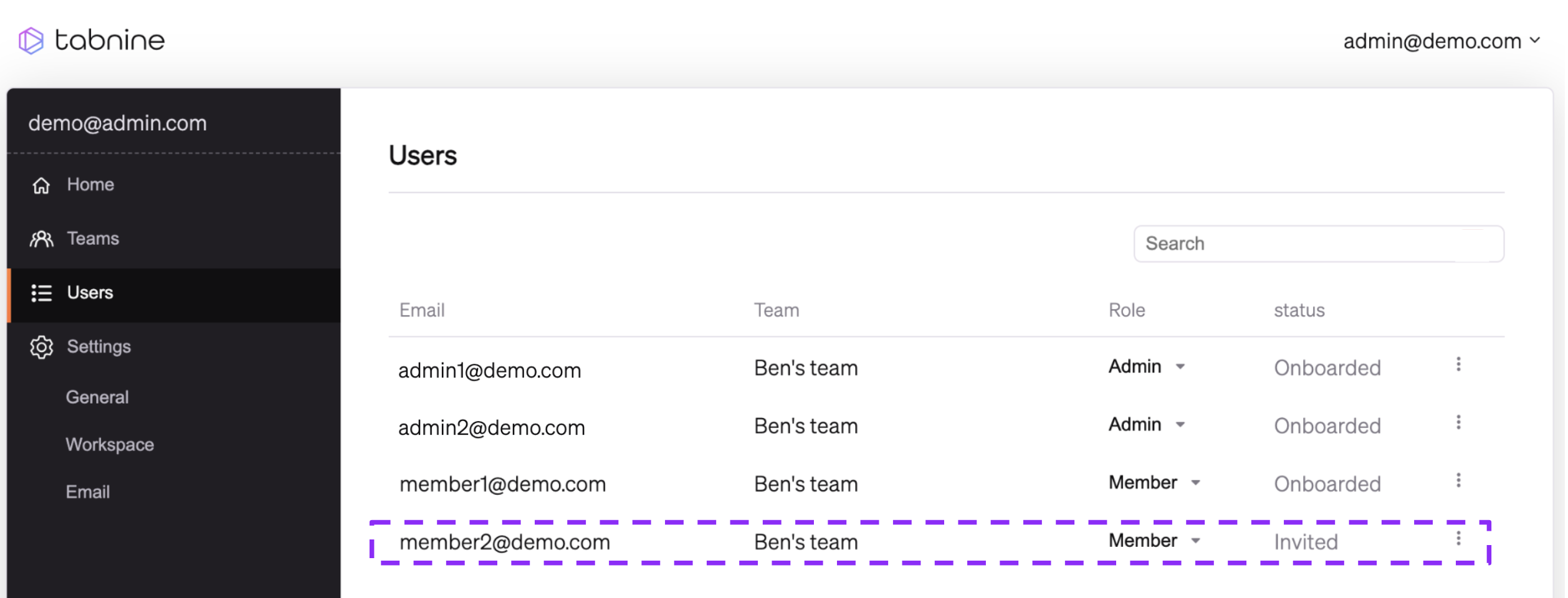
Admins can see users with pending invitations on the **Users** page.
These users appear with the status **Invited.**
### Invitations on the Users page
Admins have the option to deactivate a user. Once an Admin deactivates a user on the team, the user will be signed out from all devices and won't be able to sign in again.
### Resend an invitation or revoke an existing invitations
Admins have the option to resend an invitation or revoke an existing invitation for a user with a pending invitation:
1. Sign in to the Tabnine console as an Admin.
2. Go to the **Users** page.
3. Select an *Invited* user and click on the three-dot menu on the right.
4. Click **Resend Invite** or **Revoke invite.**
.webp?alt=media)
.webp?alt=media)