> For the complete documentation index, see [llms.txt](https://docs.tabnine.com/main/llms.txt). Markdown versions of documentation pages are available by appending `.md` to page URLs; this page is available as [Markdown](https://docs.tabnine.com/main/administering-tabnine/managing-your-team/reporting/analytics-overview-page.md).
# Analytics Overview page
The Analytics Overview contains a high-level overview and activity trends in your account.
The Analytics Overview contains a high-level overview and activity trends in your account.
### **Header Controls**
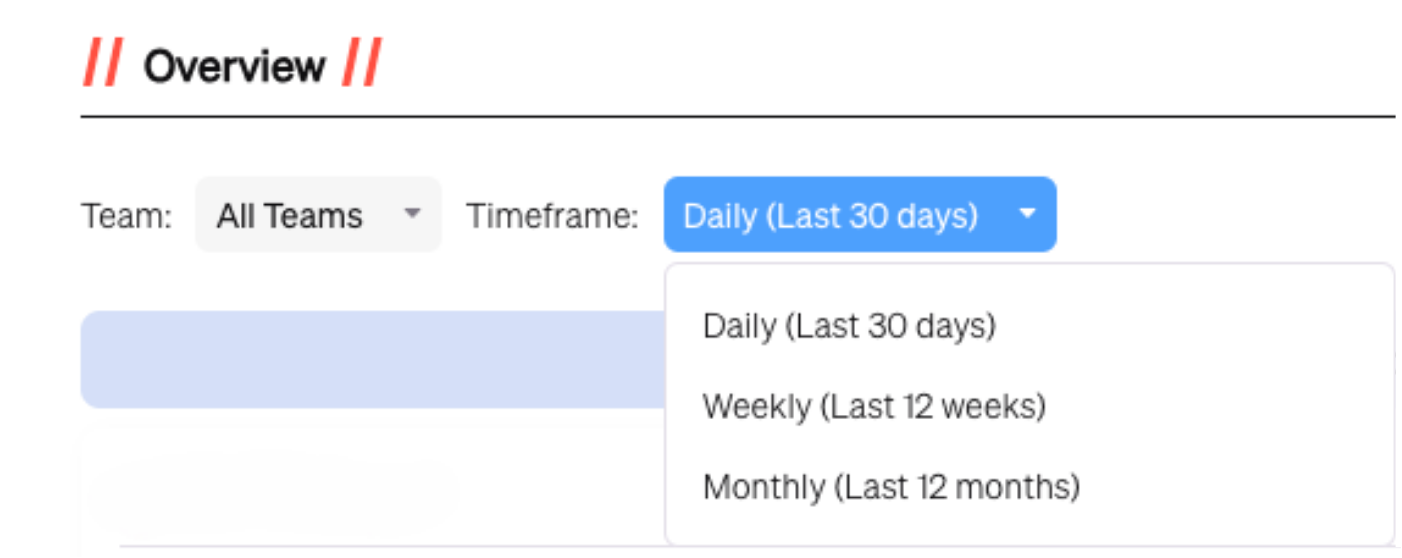
At the top of the page, you can filter data by team and by timeframe. This lets you narrow in on specific groups or review broader usage trends across your entire organization.
Here, you can choose from any of the teams OR the entire organization, as well as one of three options for timeframe:
1. Daily (Last 30 Days)
2. Weekly (Last 12 Weeks)
3. Monthly (Last 12 Months)
An export option is available for generating detailed reports.
### **Licenses Summary & Account Utilization Metrics**
The license banner shows how many users are currently registered compared to the total licenses available in your plan. This helps track adoption and capacity at a glance.
Key performance indicators (KPIs) provide a quick snapshot of overall engagement.
Metrics here cover active users, chat activity, productivity factor, chat consumption rate, and automation factor.
### Overview metrics
* **Registered Users:** The current number of [Registered Users](/main/administering-tabnine/managing-your-team/reporting/reports-glossary.md#user-status) out of the total licenses available for this account (this number does not change for a specific team)
* **Active users:** The total number of users that have [actively used](/main/administering-tabnine/managing-your-team/reporting/reports-glossary.md#active-user) Tabnine from the given population in the given timeframe
* **Total Usage:** The number of code completions and useful chat interactions performed by the population in the given timeframe
* **Automation Factor:** The code completion's[ automation factor](/main/administering-tabnine/managing-your-team/reporting/reports-glossary.md#automation-factor) for the given population in the given timeframe (available when there is enough code completion activity)
### **Active Users**
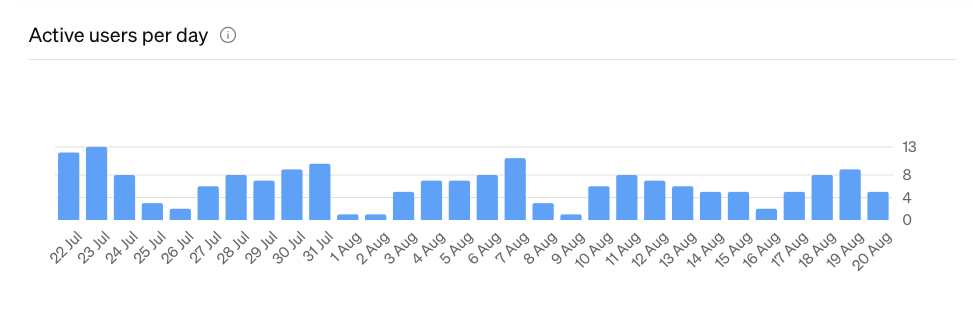
The numbers count active users as any users who has participated in at least one chat OR accepted one code completion that day. This chart displays the number of unique users active each day within the selected timeframe. Use it to identify adoption trends as well as spikes and ebbs in usage.
### **Total Usage**
The usage chart breaks down daily activity into three categories: inline actions, chat, and *accepted* code completions. The chart can be displayed by day, week, or month.
---
# Agent Instructions
This documentation is published with GitBook. GitBook is the documentation platform designed so that both humans and AI agents can read, navigate, and reason over technical content effectively. Learn more at gitbook.com.
## Querying This Documentation
If you need additional information that is not directly available in this page, you can query the documentation by asking a question.
Perform an HTTP GET request on the following URL with the `ask` and `goal` query parameters:
```
GET https://docs.tabnine.com/main/administering-tabnine/managing-your-team/reporting/analytics-overview-page.md?ask=&goal=
```
`ask` is the immediate question: it should be specific, self-contained, and written in natural language.
`goal` is what the user is ultimately trying to achieve, the reason they need the answer. Sharing it helps GitBook give you a better, more relevant answer. A goal is most helpful when it describes the outcome the user wants rather than restating the question. For example, with `ask=how do I create an API token`, a goal like `automate deployments from our CI pipeline` lets GitBook tailor the answer to that use case.
The response will contain a direct answer to the question and relevant excerpts and sources from the documentation.
Use this mechanism when the answer is not explicitly present in the current page, you need clarification or additional context, or you want to retrieve related documentation sections.