# CSV Reports
{% hint style="info" %}
This feature is available for teams using Tabnine Enterprise (private installation) and SaaS.
{% endhint %}
{% hint style="info" %}
The following CSV reports are available since version 5.7.0.
For CSV reports in older versions, [click here](https://docs.tabnine.com/main/administering-tabnine/managing-your-team/reporting/reporting#csv-based-usage-reports).
{% endhint %}
Some of the raw data for the usage report can be exported by the Admin to a CSV-based report:
## Exporting the CSV-based report
1. Go to the Tabnine management console and sign in as an Admin (or as a Manager).
2. Select the scope for the reports: **All Teams** (organization level) or for **a specific team.**
3. Click the :upload: **Export** button in the top righthand corner of the page**.**
4. A **report.zip file** containing the reports is downloaded. The All Teams report also includes a team folder with a separate .zip file for each team (removed since version 5.14.1).
### Report.zip structure
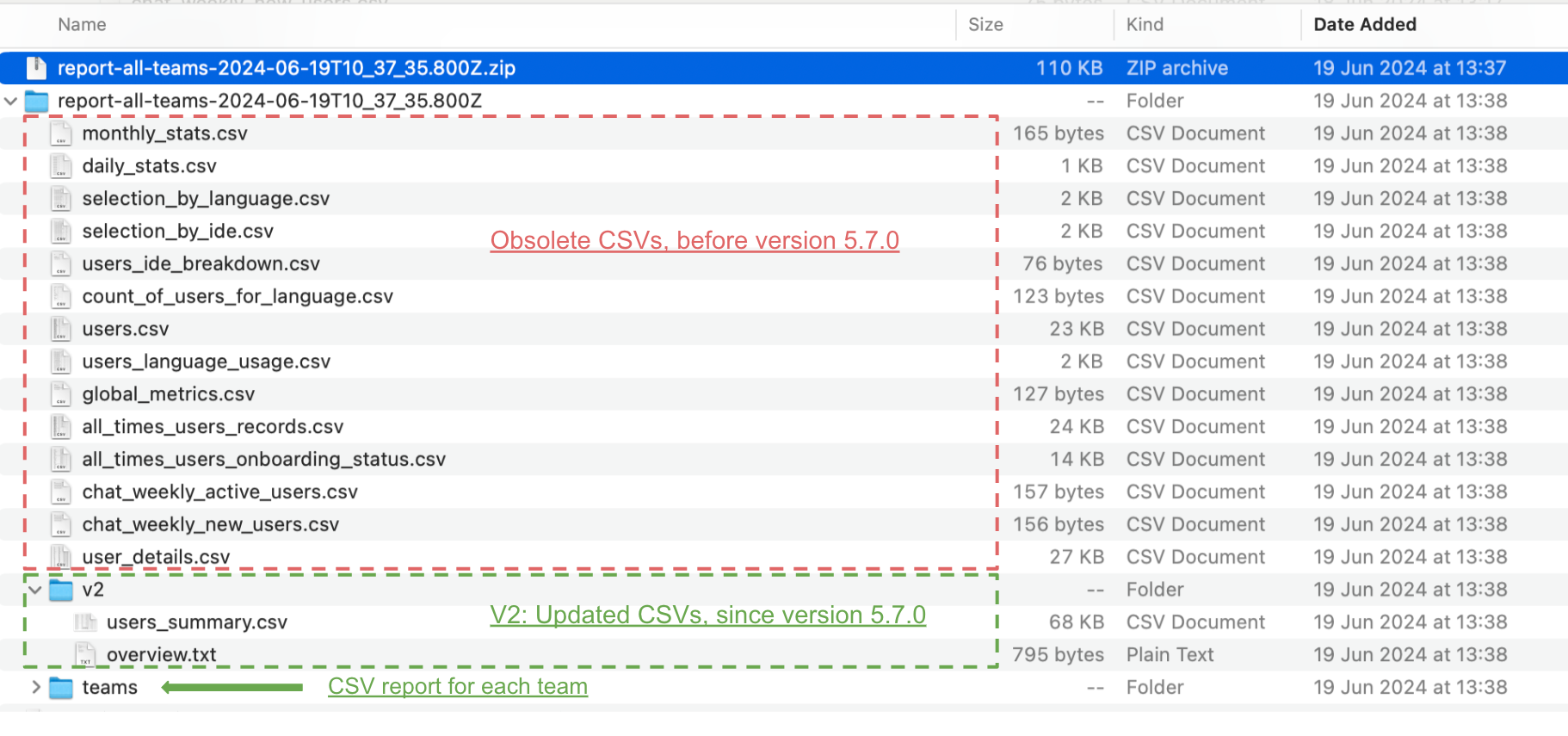
In version 5.7.0, the visual and CSV reports were upgraded and improved. The change included updated terminology, additional data points, and different definitions.
The new CSV reports appear under a folder called "V2" (at all team levels and for each team).
If you have version 5.7.0 or newer, only use the reports in the V2 folder. Temporarily, all the old CSV files are kept but should be ignored.
Reports.zip structure
## Reports in Version 5.7.0 or higher
{% hint style="info" %}
Added in version 5.10.0**:**
* Lines of code (from code completions and chat)
* User keystrokes
* Chat consumption rate
* Usage metrics for additional time frames: Last 60, 90, and 180 days
{% endhint %}
Include the following files:
* [overview.txt](#overview.txt): High-level textual overview
* [teams\_summary.csv](#teams_summary.csv): Per team overview
* [users\_summary.csv](#users_summary.csv): Per user overview
* [users\_summary\_daily.csv](#users_summary_daily.csv): Per user, per day overview (last 30 days)
### `overview.txt`
This is a short textual summary overview for all teams (or for specific teams).
The data in the overview is based on [these definitions](https://docs.tabnine.com/main/administering-tabnine/managing-your-team/reporting/reports-glossary) and is consistent with the data shown in the Admin UI.
```
//overview.txt example:
Account Overview
================
Current registered users: 211
Users who have ever Connected to the IDE: 56
Users who have used code completion or chat at least once: 50
Current users with pending invitations: 70
Current deactivated users: 36
Active users (Users who performed at least one code completion or chat interaction):
In the last 7 days: 3
In the last 30 days: 23
Usage Overview:
===============
All time:
Total number of Completions: 4148
Total characters completed: 229582
Code completions Automation factor: 29.48%
Total number of Chat interactions: 1491
Last 30 days:
Total number of Completions: 872
Total characters completed: 41330
Code completions Automation factor: 29.48%
Total number of Chat interactions: 311
```
### `teams_summary.csv`
{% hint style="info" %}
Available since version 5.11.0
{% endhint %}
This CSV provides a summary of the status and usage history for each team in the account. Data is aggregated per team for convenience, based on [`users_summary.csv`](#users_summary.csv) and according to[ these definitions](https://docs.tabnine.com/main/administering-tabnine/managing-your-team/reporting/reports-glossary), aligning with the information in the Admin UI. Each row represents a single team.
In addition, this report contains a row with the total value for each data point. Note, however, that the total also includes all users who are not assigned to a team.
### users\_summary.csv
This CSV file contains a summary of the current status and usage history of each user for all teams (or for specific teams).
The CSV contains a single row per user, including invited or deactivated users.
The data in the CSV file is based on [these definitions](https://docs.tabnine.com/main/administering-tabnine/managing-your-team/reporting/reports-glossary) and is consistent with the data shown in the Admin UI.
#### **User details**
* **User Identifier**
* **User Name**
* **Email**
* **Current Team**
* **Current Role:** *Admin, Manager,* or *Member*
* **Verified**: *Yes* (=the user has not completed an email verification) or *No*
#### **Status-related data (**[**learn more)**](https://docs.tabnine.com/main/administering-tabnine/managing-your-team/reports-glossary#user-status)
* **Status:** *Invited*, *Registered*, *Connected*, *Used* or *Deactivated*
Note that *Connected* and *Used* users are registered users, and a Used user is also connected.
* **Deactivated**: *Yes* (=status is *Deactivated)* or *No*
* **Last Deactivated on:** If a user is deactivated, the last deactivation date (a user can be deactivated and activated a few times)
* **Invited by email on:** The date on which the user has been invited by email (regardless of their current status) or is empty otherwise
* **Registered on:** The sign-up date of this user (empty of users in status=Invited, since by definition, they have not registered yet)
* **First & Last connected to the IDE on:** The first or last date the user connected to the IDE (or empty if the user has never connected)
* **First & Last used on:** The first or last date the user used Tabnnine (i.e., completed at least one chat interaction or code completion; empty if the user has never used Tabnine)
#### **Usage Data**
* **Languages:** The different languages that the user has used with Tabnine (all-time)
* **IDEs**: The different IDEs that the user has connected to Tabnine (all-time)
* **All Times Number of devices:** The number of different devices that the user connected to Tabnine from (if the user has ever connected)
**Usage for "All Times" or "Last 30, 60, 90 or 180 Days" time frames:**
Each of the following data points has two columns with different timeframes:
* **Total number of completions:** The total number of code completions accepted by this user
* **Total number of completions lines of code:** The total number of lines of code accepted by the user through code completions.
* **Total chars completed:** The total number of characters in the code completion accepted by this user
* **Total keystrokes:** The total number of keystrokes made by the user, used as an estimate for the number of characters typed by the user in the [automation factor formula](https://docs.tabnine.com/main/administering-tabnine/managing-your-team/reports-glossary#automation-factor-code-completions).
* **Automation Factor:** The [automation factor](https://docs.tabnine.com/main/administering-tabnine/managing-your-team/reports-glossary#automation-factor) for the user based on their code completion activity
* **Total number of chat interactions:** The number of times the user triggered Chat ([chat interactions](https://docs.tabnine.com/main/administering-tabnine/managing-your-team/reports-glossary#chat-interactions-and-useful-chat-interaction))
* **Total number of chat consumption:** The number of times the user used a chat answer ([Useful chat interactions](https://docs.tabnine.com/main/administering-tabnine/managing-your-team/reports-glossary#chat-interactions-and-useful-chat-interaction))
* **All Times chat copy code consumption:** The total number of [copy code useful chat interactions](https://docs.tabnine.com/main/administering-tabnine/managing-your-team/reports-glossary#types-of-useful-chat-interactions)
* **Total number of chat lines of code:** The total number of lines of code the user accepted with code completions
* **All Times chat consumed characters:** The total number of characters copied by the user from [useful chat interactions](https://docs.tabnine.com/main/administering-tabnine/managing-your-team/reports-glossary#chat-interactions-and-useful-chat-interaction) of type "[copy code](https://docs.tabnine.com/main/administering-tabnine/managing-your-team/reports-glossary#there-are-different-types-of-useful-chat-interactions)."
* **Chat consumption rate:** The [Chat Consumption Rate](https://docs.tabnine.com/main/administering-tabnine/managing-your-team/reports-glossary#chat-consumption-rate) for the user is calculated based on their chat activity and how often they utilize the provided code.
### `users_summary_daily.csv`
This CSV file contains a daily summary for each user for the last 30 days for all teams (or for specific teams).
The CSV contains a single row per user, **per day**, including invited or deactivated users.
The data in the CSV file is based on [these definitions](https://docs.tabnine.com/main/administering-tabnine/managing-your-team/reporting/reports-glossary) and is consistent with the data shown in the Admin UI.
Each row contains [user details](#user-details) and [usage data](#usage-data) (per day).