> For the complete documentation index, see [llms.txt](https://docs.tabnine.com/main/llms.txt). Markdown versions of documentation pages are available by appending `.md` to page URLs; this page is available as [Markdown](https://docs.tabnine.com/main/administering-tabnine/managing-your-team/reporting/reports-glossary.md).
# Reports Glossary
### User Status
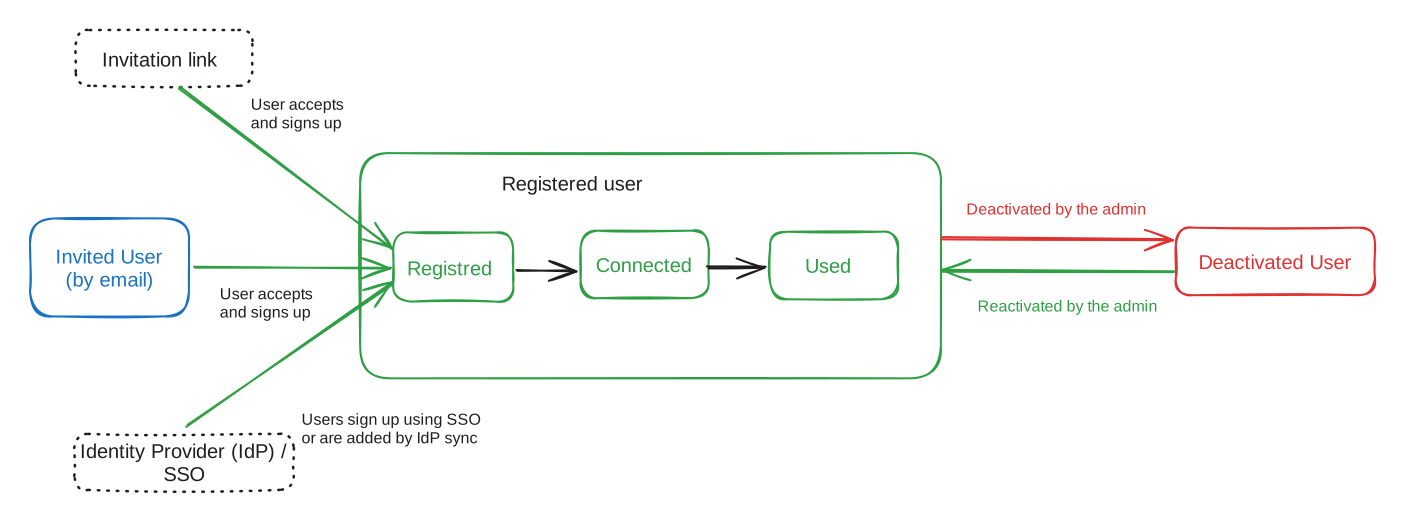
A user in Tabnine private installation can be in one of these states:
* **Invited User** (Status=**Invited**): Has a pending email invitation to join Tabnine but has not yet registered. This user is authorized to use Tabnine but cannot connect and use Tabnine until registered.
* **Registered User:** This user has signed up to Tabnine after an invitation (by email or link), by self-registration, or through SSO. This user is authorized to connect and use Tabnine. Registered users can be in one of the following statuses based on how advanced they are in onboarding to Tabnine.
* Status=**Registered****:** This is a registered user who has not yet connected to Tabnine in the IDE.
* Status=**Connected****:** This is a registered user who has connected to Tabnine in the IDE but has not actually used Tabnine yet.
* Status=**Used****:** This is a registered user who has completed at least one Agent Interaction (IDE or CLI), Chat Interaction, or accepted code completion. (*Note: This status is independent of the selected reporting period.*)
* **Deactivated User (Status=****Deactivated****):** This user had been a registered user at some point, but has been deactivated by an admin since then. This user is no longer an authorized user and cannot use Tabnine.
{% hint style="info" %}
Notes:
1. Admin can deactivate Registered users (changing their status to Deactivated) or activate Deactivated users (changing their status to back to Registered, Connected, or Used).
2. The transition between the Registered, Connected, and Used statuses is one-directional, meaning that once a user has connected Tabnine in the IDE, they cannot be back in "Registered" status. Once a user has used Tabnine, they cannot be back in "Connected" status.
{% endhint %}
**The following chart explains the user status flow for a Tabnine user:**
***
### Active User
This is A user who performed at least one of the following during the selected reporting period:
* **Agent Interaction**
* **Chat Interaction**
* **Accepted Code Completion**
#### 1. Active Agent User
A user who performed at least one Agent Interaction (IDE or CLI) during the selected reporting period.
#### 2. Active Chat User
A user who performed at least one Chat Interaction during the selected reporting period.
#### 3. Active Code Completion User
A user who accepted at least one code completion during the selected reporting period.
***
### Chat (User) Interaction
A user submits a message, question, or prompt to Tabnine Chat (Old chat or [upgraded chat](/main/getting-started/tabnine-chat/upgraded-chat-v6.2.0.md)/[v6.2.0](/main/administering-tabnine/release-notes.md))
*Note: In some places this may also be referred to as a **Chat Message**.*
### Agent (User) Interaction
A user submits a message, question, or prompt to the Tabnine Agent (IDE or CLI).
*Note: In some places, an Agent Interaction may also be referred to as an **Agent Message**.*
***
### Automation Factor (Code Completions)
The **Automation Factor** is a metric that represents the percentage of code generated using **Tabnine code completions** compared to all code written in the IDE and is calculated in the following manner:
**Example:**
If a developer typed 20 characters and Tabnine code completions contributed 5 characters:
`Automation Factor = 5 / (20 + 5) = 20%`
The sum of typed characters is approximated using the number of user keystrokes in the editor.
The Automation Factor can be calculated for the entire organization, a specific team, or individuals, and in different time frames.
Automation Factor can be measured across different scopes: individual developers, teams, or the entire organization, and over various time periods. However, the calculation relies on a minimal threshold of code completion activity over time for accuracy.
***
### Productivity Factor (Code Completions *&* Chat)
{% hint style="info" %}
As of [v6.4.0](https://docs.tabnine.com/main/administering-tabnine/managing-your-team/reporting/pages/risy3bTOlfBfgFRRXK8K#v6.4.0), productivity factor does not apply to Agent Interactions, but this feature is planned for a future release.
{% endhint %}
The **Productivity Factor** is a broader metric that includes code generated by **both** Tabnine's code completions and Tabnine Chat. It measures the total contribution of Tabnine's code generation to the overall code written in the IDE and is calculated in the following manner:
**Example:**
If a developer typed 20 characters, accepted a code completion in the length of 5 characters, and copied a line of code from chat Chat with 15 characters:
`Productivity Factor = (5 + 15) / (20 + 5 + 15) = 20 / 40 = 50%`
The sum of typed characters is approximated using the number of user keystrokes in the editor.
The Automation Factor can be calculated for the entire organization, a specific team, or individuals, and in different time frames.
{% hint style="info" %}
Currently, the **Productivity Factor** is only available in external **PDF reports** or can be calculated manually using the **raw data provided in CSV reports**. It is not yet shown in the in-app reporting dashboards. It also does not count agent activities as of [v6.4.0](https://docs.tabnine.com/main/administering-tabnine/managing-your-team/reporting/pages/risy3bTOlfBfgFRRXK8K#v6.4.0).
{% endhint %}
***
### **Chat Consumption Rate**
The Chat Consumption Rate is a metric that measures the usefulness of Tabnine chat answers. It is calculated as the ratio between the total number of times a user copied code from a chat answer and the total number of questions the user asked:
Since a user can copy code more than once from the same chat answer (for example, when the answer contains multiple code blocks), the Chat Consumption Rate can exceed 100%.
This rate can be calculated at various levels: for the entire organization, specific teams, or individual users, and across different time frames.
***
### Accepted Lines of Code
The total number of lines of code accepted from code completions or useful chat interactions (specifically of type "copy code").
***
### Last Seen
The user's most recent activity, including:
* Agent interaction
* Chat interaction
* Accepted code completion
* Joining the team
***
### Lines of Code / Characters
The number of characters generated through:
* Accepted code completions
* Code inserted or copied from Chat responses (this was slightly different in the new chat compared to the previous chat)
* Code added by the Agent
---
# Agent Instructions
This documentation is published with GitBook. GitBook is the documentation platform designed so that both humans and AI agents can read, navigate, and reason over technical content effectively. Learn more at gitbook.com.
## Querying This Documentation
If you need additional information that is not directly available in this page, you can query the documentation by asking a question.
Perform an HTTP GET request on the following URL with the `ask` and `goal` query parameters:
```
GET https://docs.tabnine.com/main/administering-tabnine/managing-your-team/reporting/reports-glossary.md?ask=&goal=
```
`ask` is the immediate question: it should be specific, self-contained, and written in natural language.
`goal` is what the user is ultimately trying to achieve, the reason they need the answer. Sharing it helps GitBook give you a better, more relevant answer. A goal is most helpful when it describes the outcome the user wants rather than restating the question. For example, with `ask=how do I create an API token`, a goal like `automate deployments from our CI pipeline` lets GitBook tailor the answer to that use case.
The response will contain a direct answer to the question and relevant excerpts and sources from the documentation.
Use this mechanism when the answer is not explicitly present in the current page, you need clarification or additional context, or you want to retrieve related documentation sections.

 ***
### Active User
This is A user who performed at least one of the following during the selected reporting period:
* **Agent Interaction**
* **Chat Interaction**
* **Accepted Code Completion**
#### 1. Active Agent User
A user who performed at least one Agent Interaction (IDE or CLI) during the selected reporting period.
#### 2. Active Chat User
A user who performed at least one Chat Interaction during the selected reporting period.
#### 3. Active Code Completion User
A user who accepted at least one code completion during the selected reporting period.
***
### Chat (User) Interaction
A user submits a message, question, or prompt to Tabnine Chat (Old chat or [upgraded chat](/main/getting-started/tabnine-chat/upgraded-chat-v6.2.0.md)/[v6.2.0](/main/administering-tabnine/release-notes.md))
*Note: In some places this may also be referred to as a **Chat Message**.*
### Agent (User) Interaction
A user submits a message, question, or prompt to the Tabnine Agent (IDE or CLI).
*Note: In some places, an Agent Interaction may also be referred to as an **Agent Message**.*
***
### Automation Factor (Code Completions)
The **Automation Factor** is a metric that represents the percentage of code generated using **Tabnine code completions** compared to all code written in the IDE and is calculated in the following manner:
**Example:**
If a developer typed 20 characters and Tabnine code completions contributed 5 characters:
`Automation Factor = 5 / (20 + 5) = 20%`
The sum of typed characters is approximated using the number of user keystrokes in the editor.
The Automation Factor can be calculated for the entire organization, a specific team, or individuals, and in different time frames.
Automation Factor can be measured across different scopes: individual developers, teams, or the entire organization, and over various time periods. However, the calculation relies on a minimal threshold of code completion activity over time for accuracy.
***
### Productivity Factor (Code Completions *&* Chat)
{% hint style="info" %}
As of [v6.4.0](https://docs.tabnine.com/main/administering-tabnine/managing-your-team/reporting/pages/risy3bTOlfBfgFRRXK8K#v6.4.0), productivity factor does not apply to Agent Interactions, but this feature is planned for a future release.
{% endhint %}
The **Productivity Factor** is a broader metric that includes code generated by **both** Tabnine's code completions and Tabnine Chat. It measures the total contribution of Tabnine's code generation to the overall code written in the IDE and is calculated in the following manner:
***
### Active User
This is A user who performed at least one of the following during the selected reporting period:
* **Agent Interaction**
* **Chat Interaction**
* **Accepted Code Completion**
#### 1. Active Agent User
A user who performed at least one Agent Interaction (IDE or CLI) during the selected reporting period.
#### 2. Active Chat User
A user who performed at least one Chat Interaction during the selected reporting period.
#### 3. Active Code Completion User
A user who accepted at least one code completion during the selected reporting period.
***
### Chat (User) Interaction
A user submits a message, question, or prompt to Tabnine Chat (Old chat or [upgraded chat](/main/getting-started/tabnine-chat/upgraded-chat-v6.2.0.md)/[v6.2.0](/main/administering-tabnine/release-notes.md))
*Note: In some places this may also be referred to as a **Chat Message**.*
### Agent (User) Interaction
A user submits a message, question, or prompt to the Tabnine Agent (IDE or CLI).
*Note: In some places, an Agent Interaction may also be referred to as an **Agent Message**.*
***
### Automation Factor (Code Completions)
The **Automation Factor** is a metric that represents the percentage of code generated using **Tabnine code completions** compared to all code written in the IDE and is calculated in the following manner:
**Example:**
If a developer typed 20 characters and Tabnine code completions contributed 5 characters:
`Automation Factor = 5 / (20 + 5) = 20%`
The sum of typed characters is approximated using the number of user keystrokes in the editor.
The Automation Factor can be calculated for the entire organization, a specific team, or individuals, and in different time frames.
Automation Factor can be measured across different scopes: individual developers, teams, or the entire organization, and over various time periods. However, the calculation relies on a minimal threshold of code completion activity over time for accuracy.
***
### Productivity Factor (Code Completions *&* Chat)
{% hint style="info" %}
As of [v6.4.0](https://docs.tabnine.com/main/administering-tabnine/managing-your-team/reporting/pages/risy3bTOlfBfgFRRXK8K#v6.4.0), productivity factor does not apply to Agent Interactions, but this feature is planned for a future release.
{% endhint %}
The **Productivity Factor** is a broader metric that includes code generated by **both** Tabnine's code completions and Tabnine Chat. It measures the total contribution of Tabnine's code generation to the overall code written in the IDE and is calculated in the following manner:
