> For the complete documentation index, see [llms.txt](https://docs.tabnine.com/main/llms.txt). Markdown versions of documentation pages are available by appending `.md` to page URLs; this page is available as [Markdown](https://docs.tabnine.com/main/administering-tabnine/managing-your-team/settings/general-settings/single-sign-on-sso.md).
# Single Sign-On (SSO)
## Single Sign-On
Single Sign-On (SSO) lets your users authenticate to Tabnine using your existing identity provider (IdP). You can configure SSO using either SAML or OAuth 2.0 / OpenID Connect, depending on what your IdP supports. Each organization can use one of these protocols at a time (SAML or OAuth 2.0, not both).
### How To Configure Single Sign-On
In the Tabnine Admin Console, go to **Settings**, then **General**.
Next, open the **Single Sign-On** section and toggle Enable Single Sign-On (SSO) on.
Then, under **SSO Protocol**, choose either **SAML** or **OAuth 2.0**.
{% tabs %}
{% tab title="Configuring SAML" %}

When **SAML** is selected as your SSO protocol:
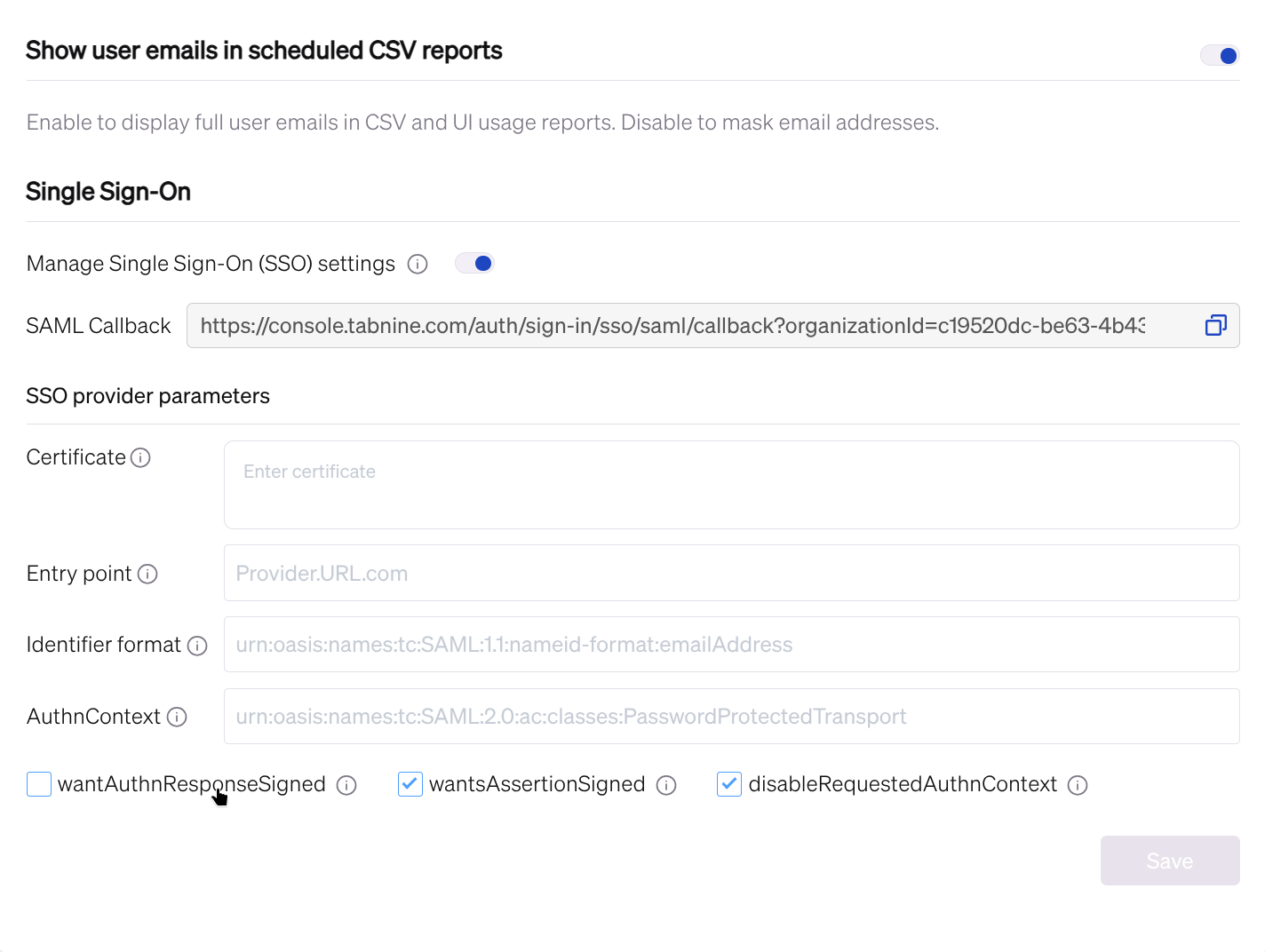
1. Copy the **SAML Callback** URL from the Tabnine console.
2. In your IdP (for example Azure AD or Okta), paste this URL into the SAML application as the **Reply URL / Assertion Consumer Service URL (ACS)**.
3. In the Tabnine console, fill in the following **SAML provider parameters** with values from your IdP:
* **Certificate** – the IdP’s X.509 certificate (Base64‑encoded).
* **Entry point** – the IdP’s SAML SSO / login URL.
* **Identifier format** (optional) – the SAML NameID format your IdP uses (for example, email address).
* **AuthnContext** (optional) – the authentication context class your IdP requires.
“Identifier format” refers to the name identifier format of the request your IdP expects.\
“`AuthnContext`” specifies the authentication mechanism and level of assurance the IdP should use.
4. (Optional) Adjust the SAML flags if required by your IdP:
* **`wantAuthnResponseSigned`**
* **`wantsAssertionSigned`**
* **`disableRequestedAuthnContext`**
5. Click **Save**.
{% endtab %}
{% tab title="Configure OAuth 2.0" %}
When OAuth 2.0 is selected as your SSO protocol:
1. Copy the OAuth Redirect URI from the Tabnine console.
2. In your IdP / OAuth provider, paste this URI into the application configuration as the Redirect URI / Callback URL.
3. In the Tabnine console, fill in the following OAuth provider parameters with values from your IdP:
* **Client ID** – the application’s client identifier.
* **Client Secret** – the application’s client secret.
* Auth URL – the authorization endpoint URL (for example, `https://provider.com/oauth/authorize`).
* **Token URL** – the token endpoint URL.
* **User Info URL** – the user info endpoint URL (if your provider uses one).
* **Scopes** (optional) – used when retrieving the user’s identity
* For example, `openid email profile` (used by default) is used when using OpenID Connect.
4. Expand **Advanced Settings** and configure:
* **Email Claim** (optional) – the field in the token that contains the user’s email (for example, `email` or `upn`).
* **Name Claim** (optional) – the field that contains the user’s display name (for example, `name`).
* **Resource** (optional) – a resource / audience value if your IdP requires it.
* **Custom CA Cert** (optional) – a Base64‑encoded CA certificate if your IdP uses a custom CA.
5. Click **Save**.
{% endtab %}
{% endtabs %}
After saving, test logging in via SSO to make sure the email and name claims map correctly to your Tabnine users.
### Use Azure as a SAML IdP
1. Enter .
2. After logging into Azure, go to the **Azure Active Directory** tab.
3. Select **Enterprise applications** service.
4. Choose **New application.**
5. Choose **Create your own application.**
6. Choose **Non-gallery application.** (Integrate any other application you don't find in the gallery.)
7. Name it (for example, "TabnineSSO") and click **Add.**
8. Choose **Setup single sign-on**.
9. Select **SAML-based Sign-on** as the SSO mode.
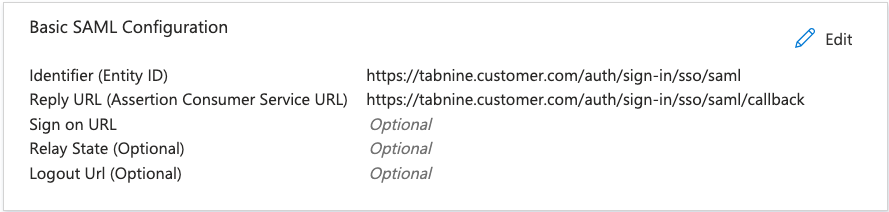
10. Next, add the Tabnine service provider details to the configuration in Azure. Set the following values in **Identifier (Entity ID)** and **Reply URL (Assertion Consumer Service URL),** replacing **tabnine.customer.com** with your Tabnine cluster domain:\\
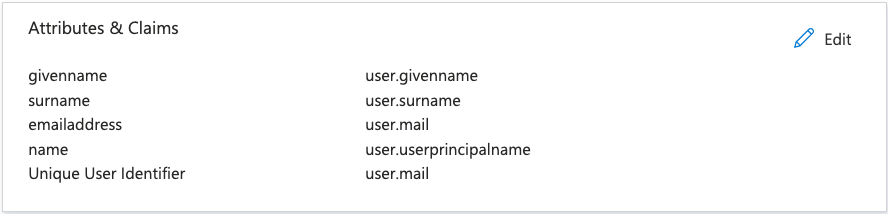
11. Choose **user.mail** as the value for **Unique User Identifier:**\\
12. In Section 3 - SAML Certificates, choose **Download certificate (Base64).**
13. In Section 4, copy **Login URL** **value** to use in the next step.
14. Finally, make sure the following are checked at the bottom:\
\&#xNAN;**☑ wantsAssertionSigned** and **☑ disableRequestedAuthnContext**
Be sure to have checked off ☑ wantsAssertionSigned and ☑ disableRequestedAuthnContext for Azure configurations
### Use Okta as a SAML IdP
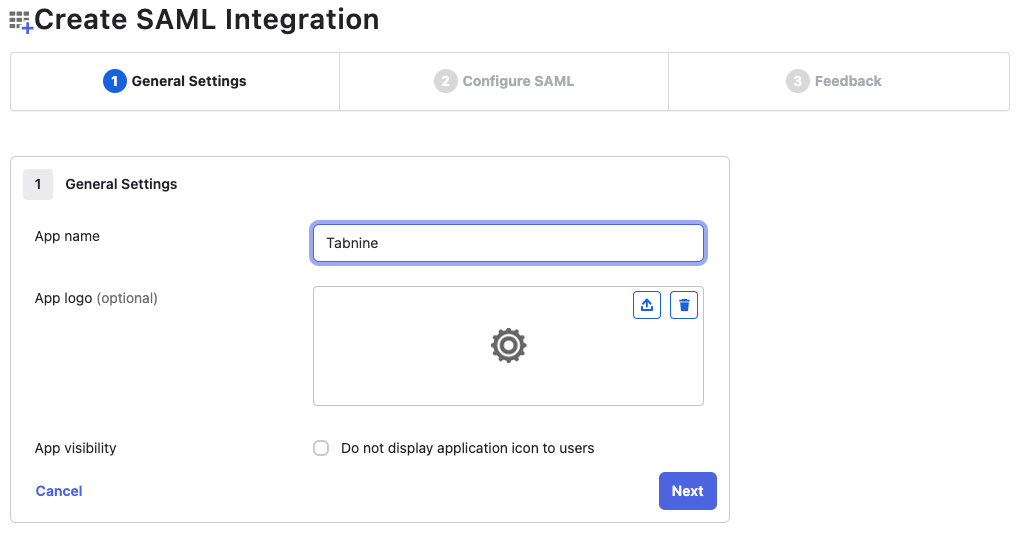
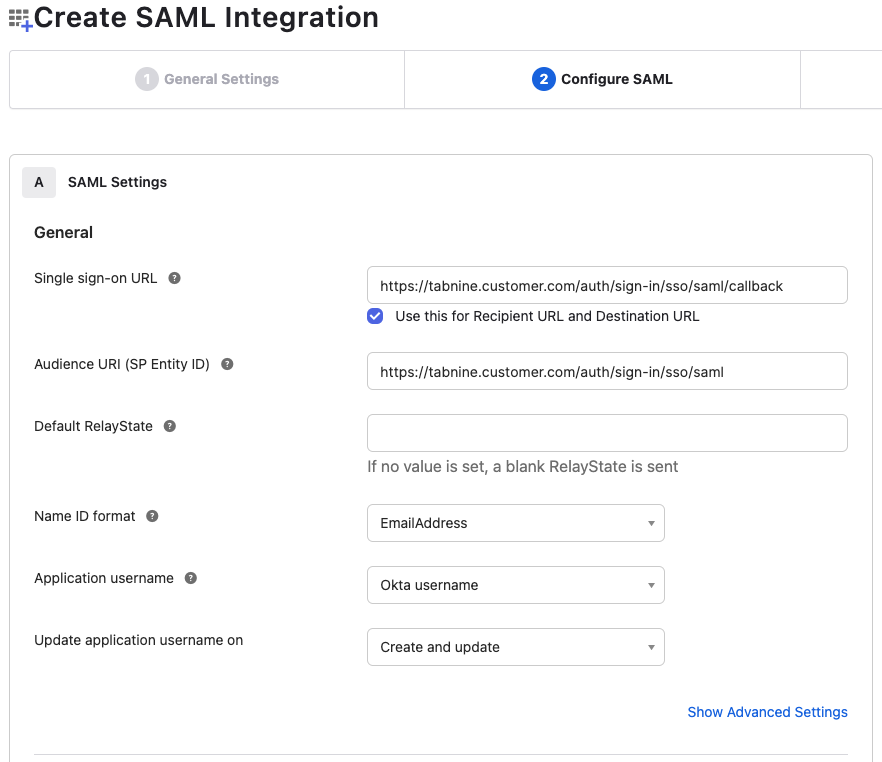
1. Enter your Okta admin panel in **Applications > Create App Integration > SAML2 integration.**
2. Set an App name (e.g., "Tabnine"):\\
3. Next, set the following values:\
\
**Single sign-on URL:** *https\://**tabnine.customer.com**/auth/sign-in/sso/saml/callback*\
\
**Audience URI (SP Entity ID):** *https\://**tabnine.customer.com**/auth/sign-in/sso/saml*\
\
**Name ID format:** `EmailAddress`\
\
\&#xNAN;*NOTE: Replace **tabnine.customer.com** with your Tabnine cluster domain.*\\
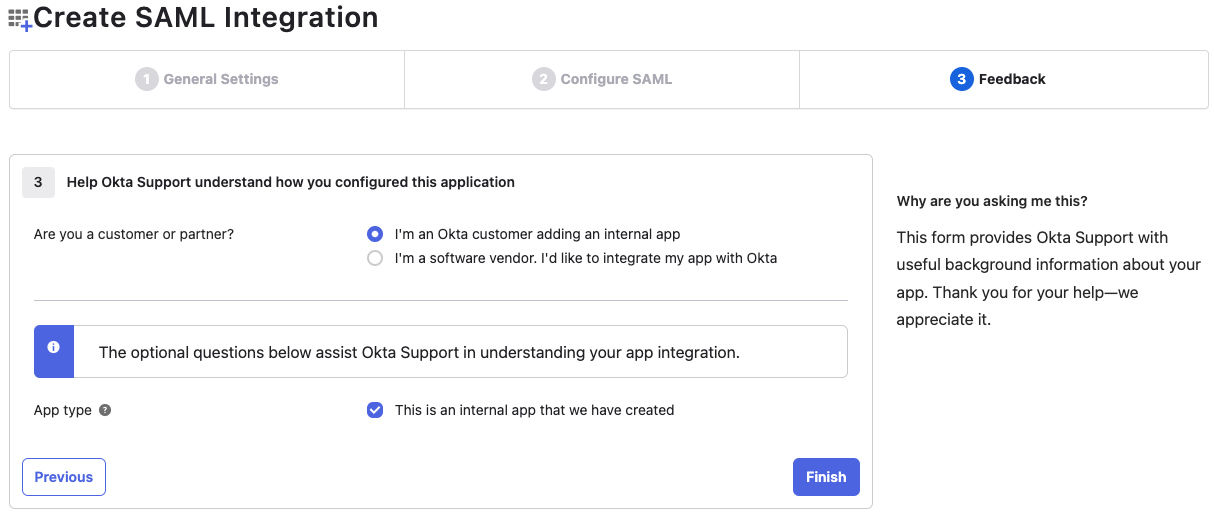
4. Choose 🔵 **I'm an Okta customer adding an internal app.**\\
5. In the created App in Okta ("Tabnine"), Sign on tab, copy **Sign on URL** value and **Signing Certificate** values.
---
# Agent Instructions
This documentation is published with GitBook. GitBook is the documentation platform designed so that both humans and AI agents can read, navigate, and reason over technical content effectively. Learn more at gitbook.com.
## Querying This Documentation
If you need additional information that is not directly available in this page, you can query the documentation by asking a question.
Perform an HTTP GET request on the following URL with the `ask` and `goal` query parameters:
```
GET https://docs.tabnine.com/main/administering-tabnine/managing-your-team/settings/general-settings/single-sign-on-sso.md?ask=&goal=
```
`ask` is the immediate question: it should be specific, self-contained, and written in natural language.
`goal` is what the user is ultimately trying to achieve, the reason they need the answer. Sharing it helps GitBook give you a better, more relevant answer. A goal is most helpful when it describes the outcome the user wants rather than restating the question. For example, with `ask=how do I create an API token`, a goal like `automate deployments from our CI pipeline` lets GitBook tailor the answer to that use case.
The response will contain a direct answer to the question and relevant excerpts and sources from the documentation.
Use this mechanism when the answer is not explicitly present in the current page, you need clarification or additional context, or you want to retrieve related documentation sections.


 Use Azure as a SAML IdP
1. Enter
Use Azure as a SAML IdP
1. Enter