> For the complete documentation index, see [llms.txt](https://docs.tabnine.com/main/llms.txt). Markdown versions of documentation pages are available by appending `.md` to page URLs; this page is available as [Markdown](https://docs.tabnine.com/main/administering-tabnine/managing-your-team/settings/workspace-settings/connecting-to-remote-repositories.md).
# Context Enhancement
Connection is a feature within Tabnine Personalization, created to improve the relevance and precision of AI-powered code suggestions.
### What is Connection?
Connection is a feature within **Tabnine Personalization**, created to improve the relevance and precision of AI-powered code suggestions. By making Tabnine aware of remote/external code repositories within the organization – beyond just the developer’s local environment – Connection provides a broader scope of contextual code examples.
Utilizing a Global RAG index, Connection retrieves relevant code snippets from these remote sources.
## Enabling Remote Codebase Awareness in Tabnine Enterprise
***(connection to software repository for global code awareness)***
{% hint style="warning" %}
Codebase awareness is available only for Tabnine Chat, and not for Code Completions.
{% endhint %}
{% hint style="info" %}
Note:
1. Connection to the remote codebase is ***only*** available if Tabnine Context is enabled.
2. If this feature is disabled, contact your account manager at Tabnine to enable it.
{% endhint %}
### Setting Remote Git Providers
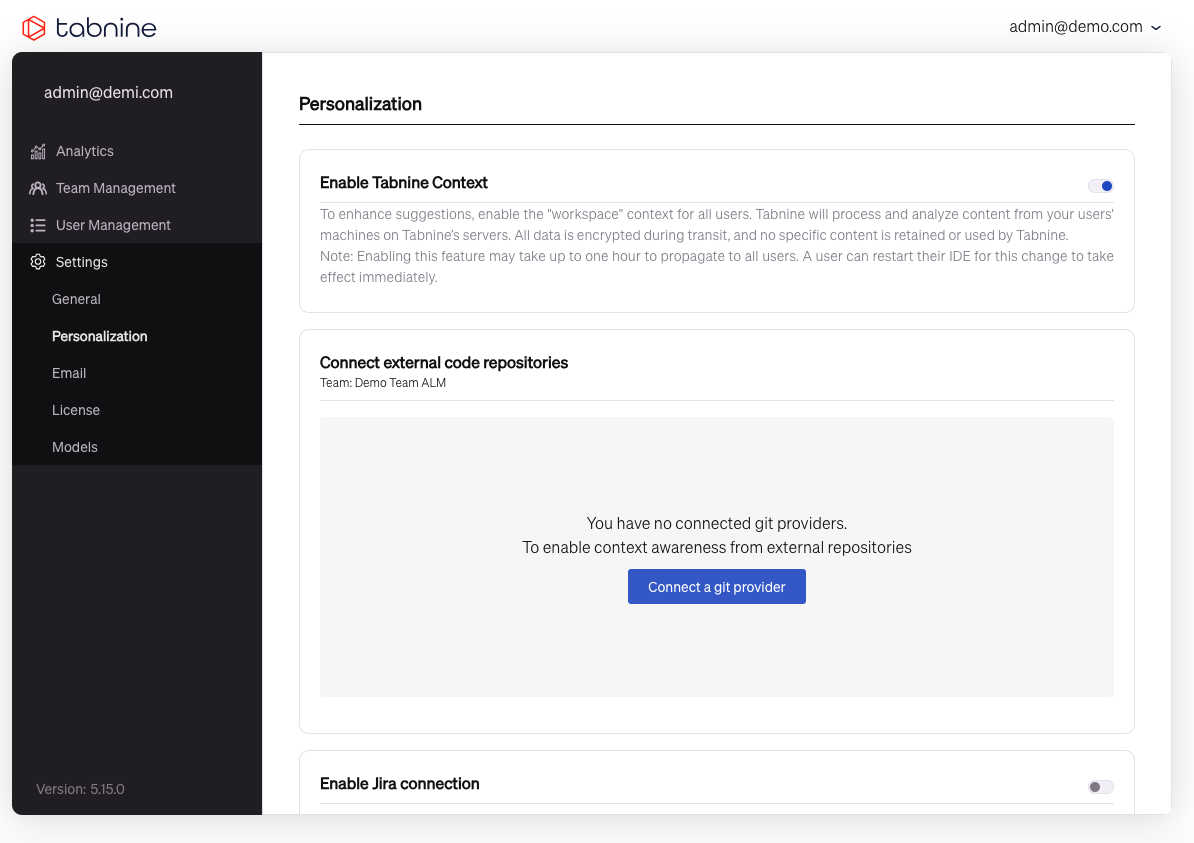
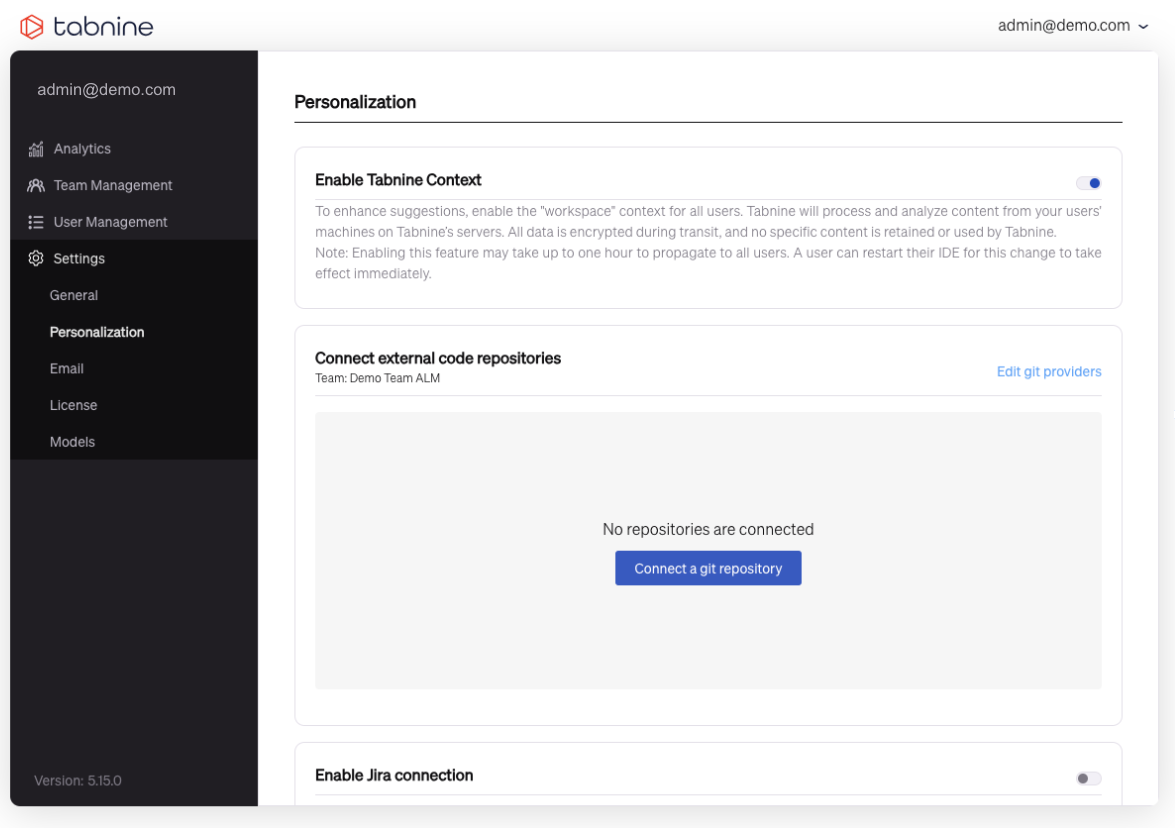
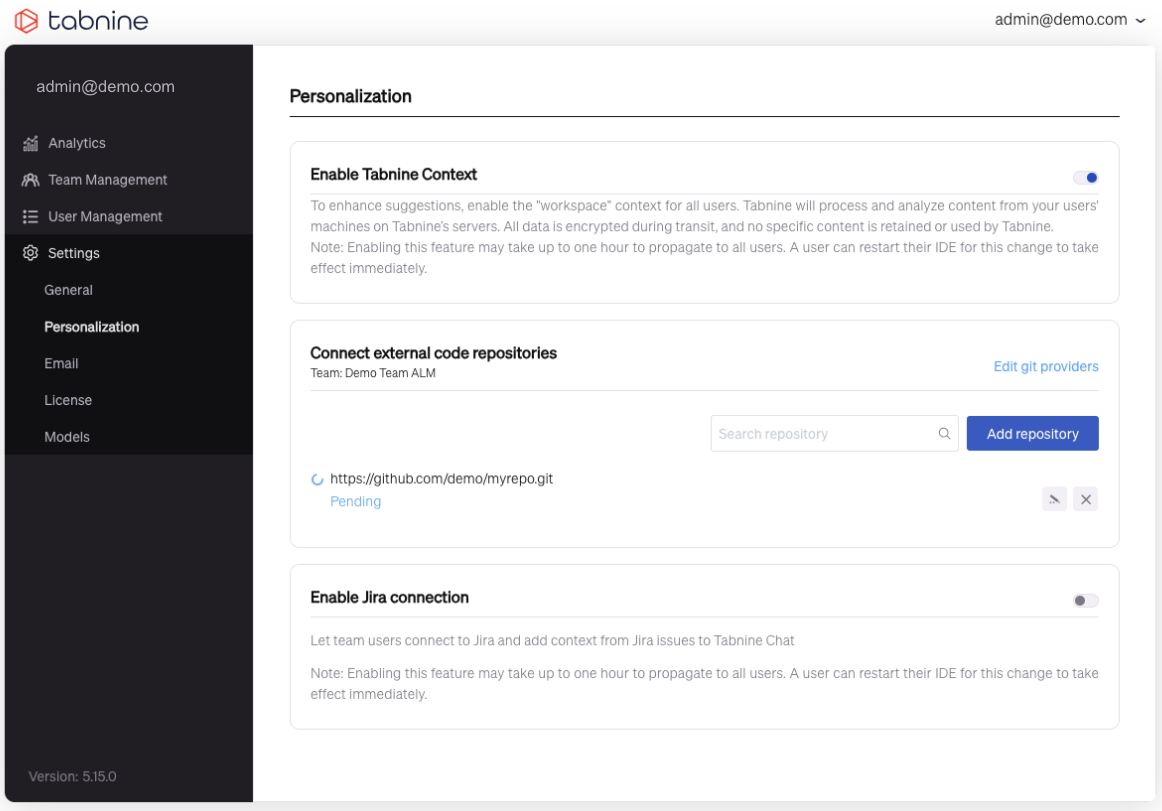
To start, an admin should go to the **Admin Console.** From there enter **⚙ Settings**, then select **Personalization** (in older versions, from Settings go to Workspace).
If this feature is disabled, contact your Tabnine account manager to enable it.
Once enabled, the admin can link Connection to external remote repositories.
Next, the admin should define Connection to their git providers (using SSH Key or HTTPS credentials). Finally, the admin can add repositories using these connection methods.
Start with an empty state. Enable the Connection feature in order to connect to a provider.
#### Connection with an SSH Key
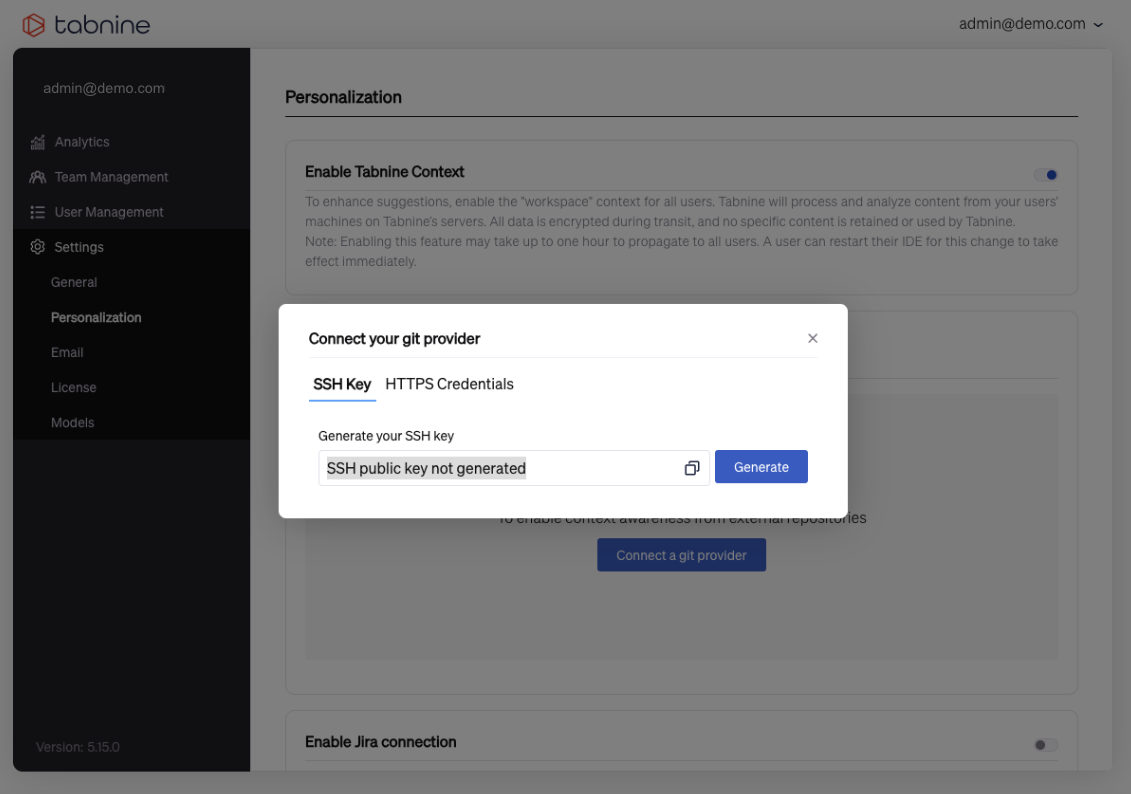
Next, set Connection to a git provider with an SSH key, which you can generate in the window:
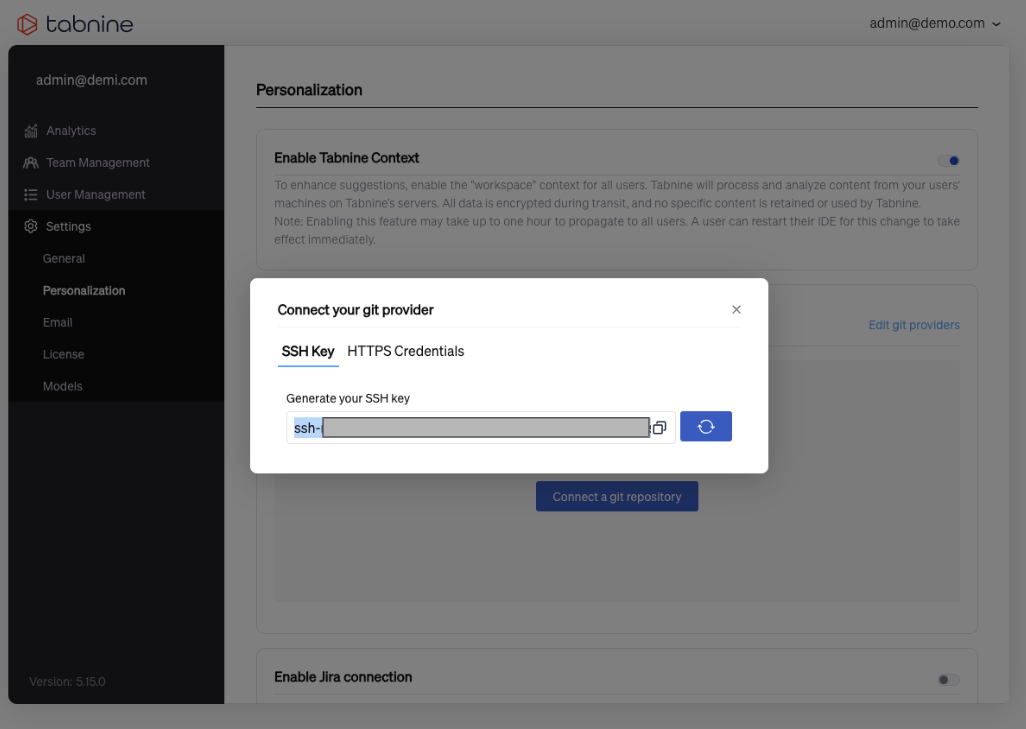
Generating an SSH key in Tabnine's Admin Console
The admin then copies the SSH key and adds it to their git provider. For example: [GitHub](https://github.com/settings/keys), [GitLab](https://gitlab.com/-/user_settings/ssh_keys), and [Bitbucket](https://bitbucket.org/account/settings/ssh-keys/).
#### Connection with HTTPS
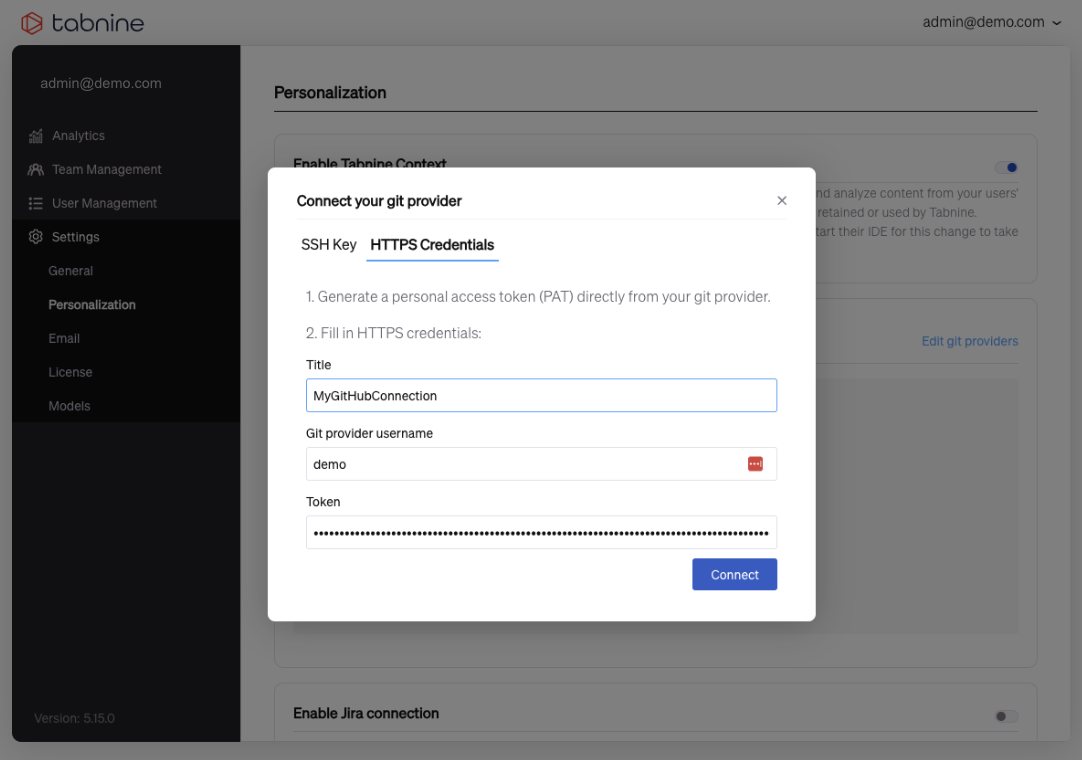
Alternatively, you can set Connection to a git provider via HTTPS using PTA (personal access tokens) from the git providers:
### Managing Connected Repositories
#### Adding Repositories
Before you add your first git repo, you will see a gray window. There, click the blue button reading **Connect to a git repository**.
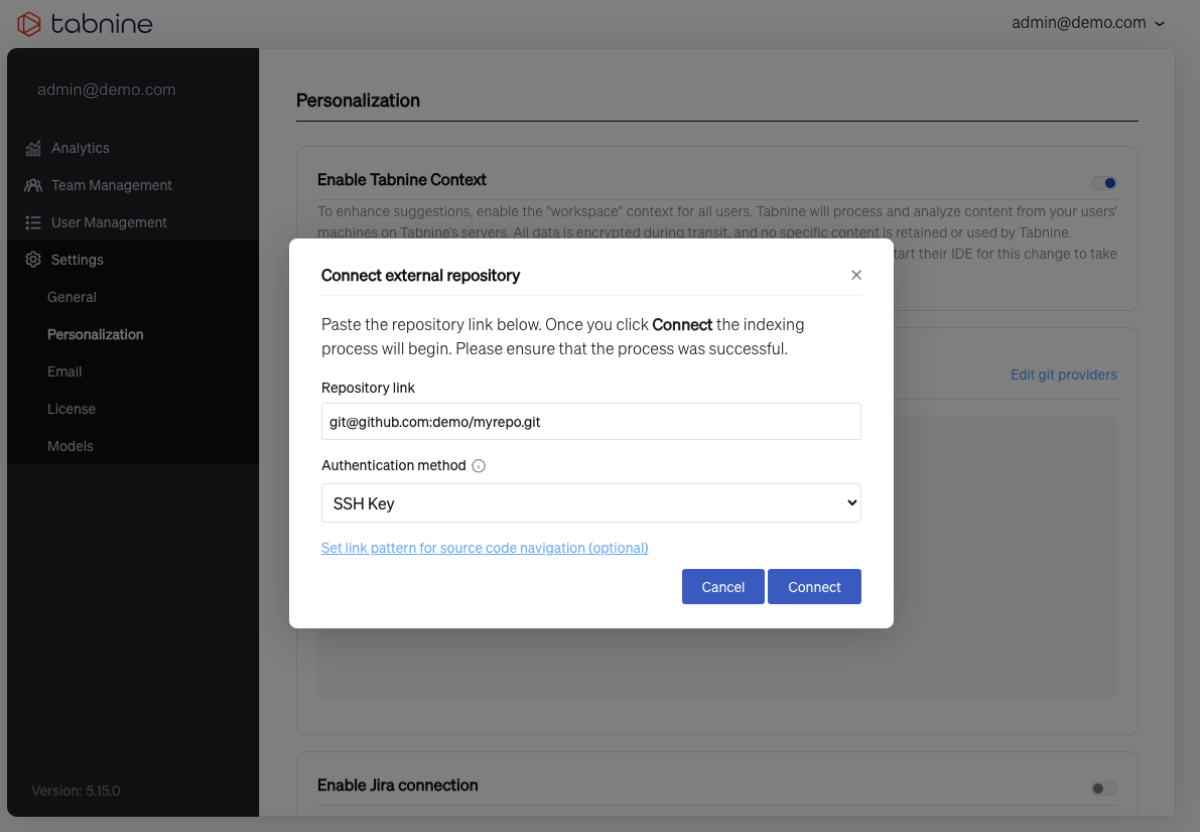
Again, you can either use an SSH Key or HTTPS.
Either way, paste the link to the repo.
Connection with SSH
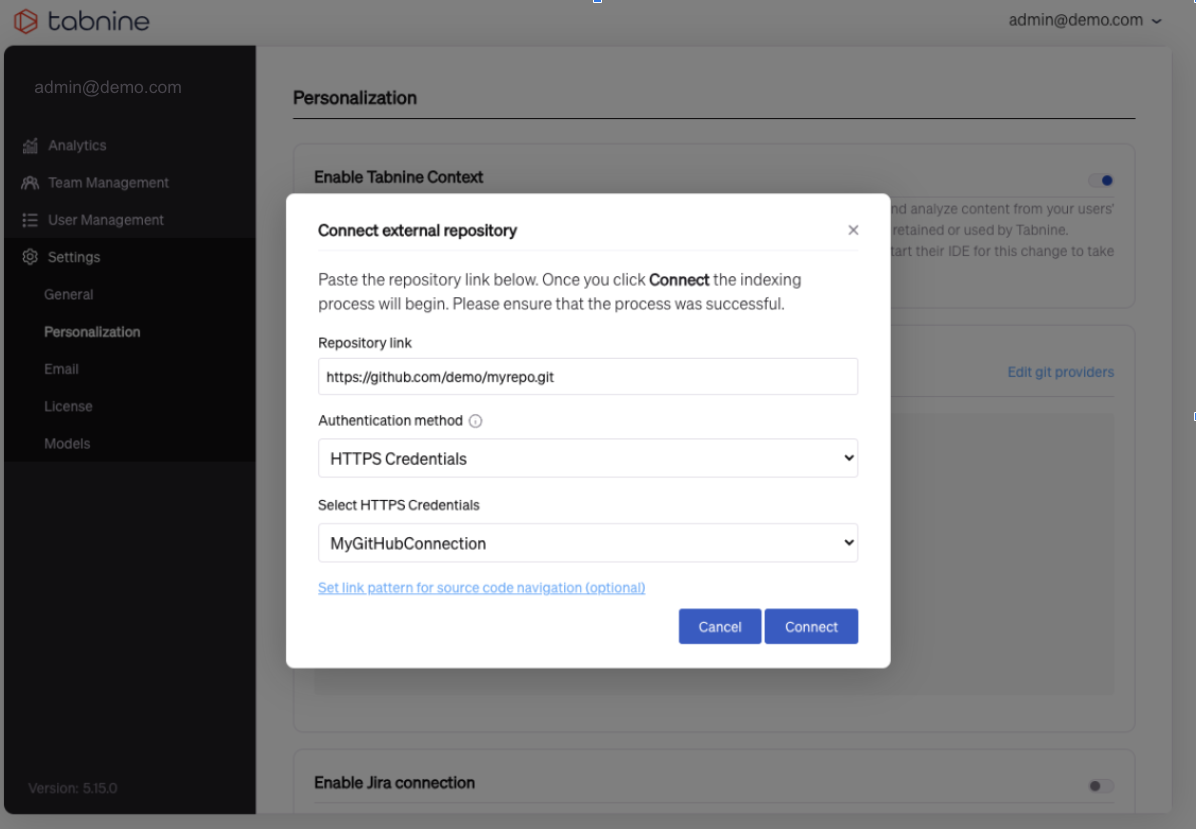
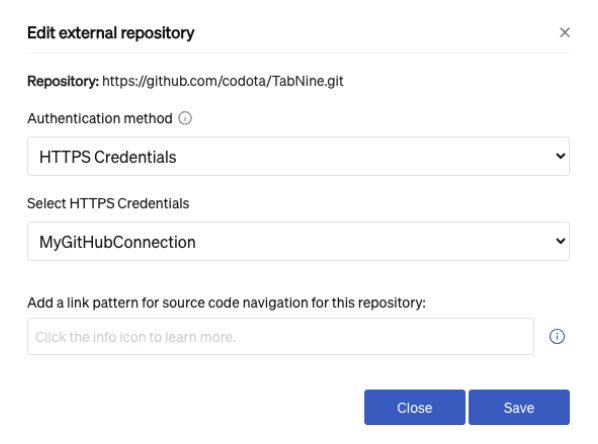
With HTTPS, also add the connection name under **Select HTTPS Credentials**.
Connection with HTTPS
For both SSH and HTTPS, next hit **Connect**.
You will see the following message in the lower righthand corner of the screen when a repo is successfully added:
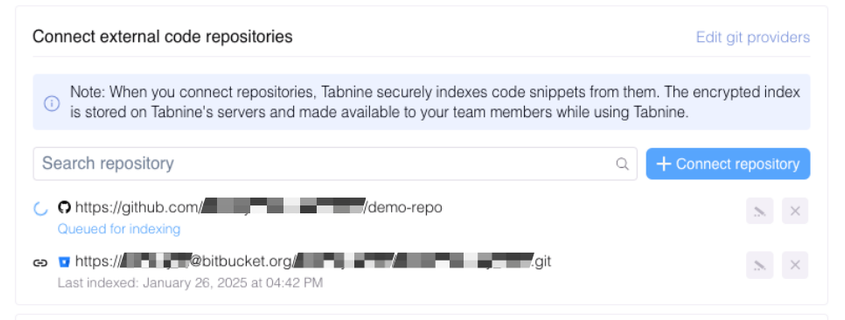
Once you already have one git connected, the window will show the list of all available gits as well as a blue **+ Connect repository** button.
Press that button, then follow the same process as above.
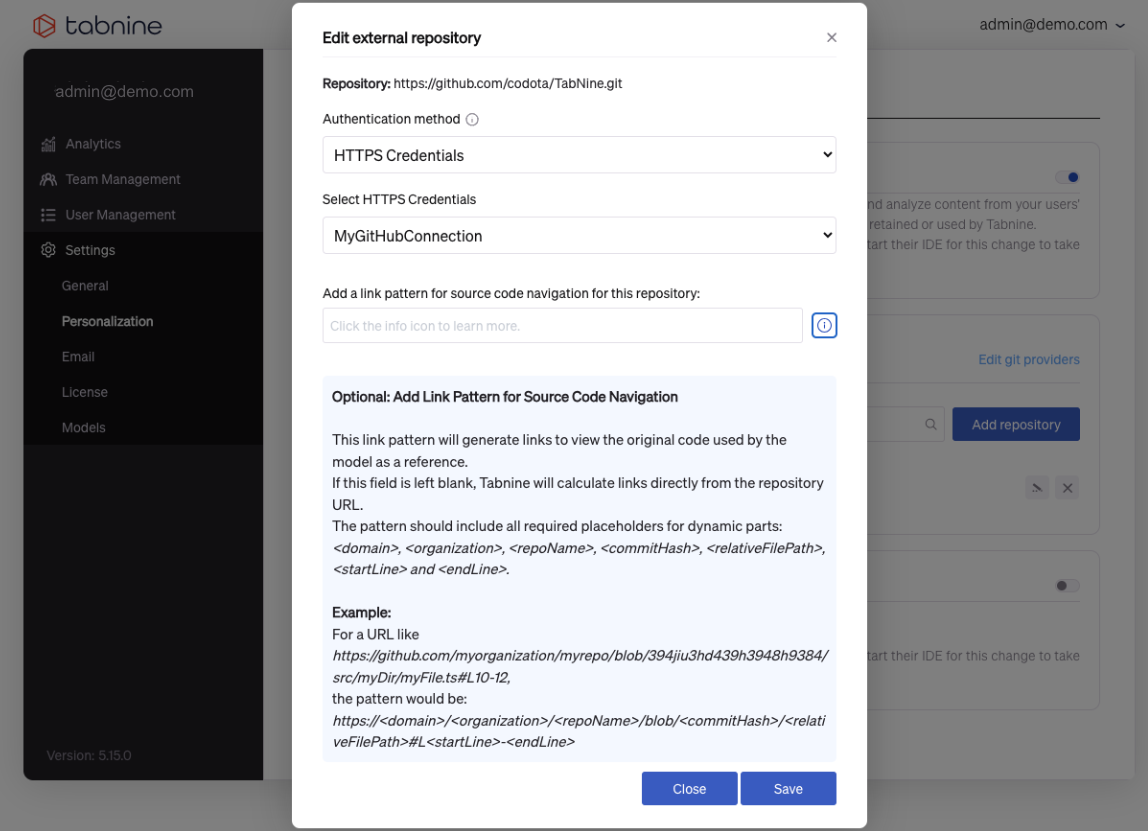
Optionally, you can add a link pattern for source code navigation.
#### Removing & Editing
To edit providers, select the blue Edit git providers text to the right above the **Connect to a git repository** window**.**
Alternatively, you can also delete current repositories. Once done, the following message will display in the lower righthand corner of the screen:
#### View Status
There might be a delay beforehand, where a status message will read Queued for indexing. Indexing might take a while, possibly up to an hour.
There will be one of four statuses: "Pending," "In process," "Successful," or "Failed."
Indexing might take a few minutes
---
# Agent Instructions
This documentation is published with GitBook. GitBook is the documentation platform designed so that both humans and AI agents can read, navigate, and reason over technical content effectively. Learn more at gitbook.com.
## Querying This Documentation
If you need additional information that is not directly available in this page, you can query the documentation by asking a question.
Perform an HTTP GET request on the following URL with the `ask` and `goal` query parameters:
```
GET https://docs.tabnine.com/main/administering-tabnine/managing-your-team/settings/workspace-settings/connecting-to-remote-repositories.md?ask=&goal=
```
`ask` is the immediate question: it should be specific, self-contained, and written in natural language.
`goal` is what the user is ultimately trying to achieve, the reason they need the answer. Sharing it helps GitBook give you a better, more relevant answer. A goal is most helpful when it describes the outcome the user wants rather than restating the question. For example, with `ask=how do I create an API token`, a goal like `automate deployments from our CI pipeline` lets GitBook tailor the answer to that use case.
The response will contain a direct answer to the question and relevant excerpts and sources from the documentation.
Use this mechanism when the answer is not explicitly present in the current page, you need clarification or additional context, or you want to retrieve related documentation sections.