> For the complete documentation index, see [llms.txt](https://docs.tabnine.com/main/llms.txt). Markdown versions of documentation pages are available by appending `.md` to page URLs; this page is available as [Markdown](https://docs.tabnine.com/main/getting-started/tabnine-chat/chat-context/context-scoping.md).
# Context Scoping
Determining which specific resources Tabnine uses to adjust its answers
Context Scoping is a mechanism that explicitly shows the user the scope in which Tabnine searches for relevant context.
### What is Context Scoping?
Tabnine Chat searches for additional relevant context beyond the user's prompt to help answer questions more effectively. The relevant context can be found in various sources:
* The current open file
* The current conversation history
* The local workspace in the IDE
* Connected remote repositories from the organization's codebase (Enterprise only)
**Context Scoping** is a mechanism that explicitly shows the user the scope in which Tabnine searches for relevant context. It allows users to refine the scope, guiding Tabnine on where to look or where not to look for context.
### Why is this important?
The additional relevant context is passed to the AI model, directly affecting the accuracy of the Chat answer. In some cases, the most relevant context was not added, and the answers were not as accurate as expected. This can happen due to various reasons; the most common ones are that there is too much code to look in or similar content that "hides" the actually relevant context. Scoping allows users to direct Tabnine's focus on relevant areas, improving the results.
For example, by default Tabnine prefers the context from the current files and local workspaces, as it usually provides the most relevant context. However, for some questions the most relevant context is actually in a remote repository. The user can change the context scope to a remote codebase or specific remote repository, resulting in more accurate answers.
### Working with Context Scoping
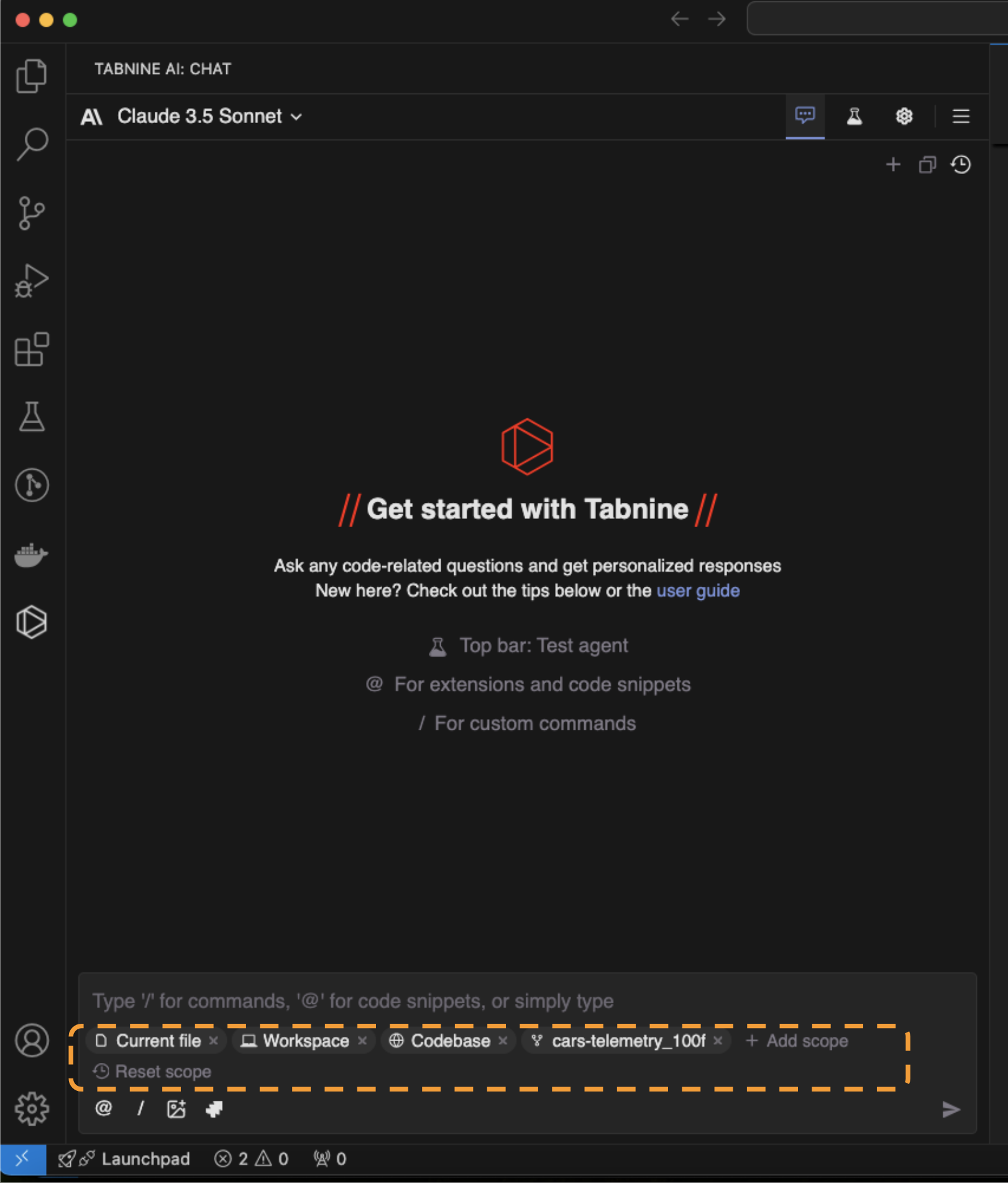
The chat context scoping is managed for each chat conversation. The state of the context scoping of the conversation appears in a dedicated section next to the user prompt. Each type of scope is indicated with the relevant tag representing that scope. Tabnine will only search for relevant context in the existing context scoping.
### Types of Scoping
#### High-Level Scopes
* **Current file**: Tabnine can take the context from the current open file, if an open file exists. If this scope is not selected, Tabnine will ignore the current file.
* **Remote Codebase**: Tabnine can look for relevant context in all the remote repositories connected to the account from the codebase. If this scope is not selected, Tabnine will not look for relevant context in the connected repositories.
{% hint style="info" %}
**Unindexed Files:**
You can also refer to the following filetypes with the following extensions via Context Scoping: `.md, .mkd, .mdwn, .mdown, .mdtxt, .mdtext, .markdown, .yaml, .yml, .json, .xml, .gradle, bash, .sh, .txt, .ini, .properties, .prefs, .cfg, .cmake`
{% endhint %}
#### Specific Scopes
* **Remote repository**: Indicates a specific remote repository from the codebase which is connected to the account.
* Folders and files from remote repositories in the codebase
* Folders from the local workspace
### Managing and Adjusting Context Scoping
Context scoping is defined at the Chat conversation level.
Each conversation maintains a separate scoping status. Each conversation starts with the default scoping, and the user can change the scoping by adding and removing scope.
#### Scoping State
The following three options comprise the default scoping state:
* Current file
* Local workspace
* Remote codebase (Enterprise only, if the account has connected repositories)
The default scoping appears when starting a new conversation or when resetting the scope, ensuring that Tabnine searches for context using the initial settings before any customizations.
While not part of the default scoping state, you can also add your Terminal to your context scope. The following will show you how to modify resources in your context scope with reset, adding, and removing:
#### Resetting Scope
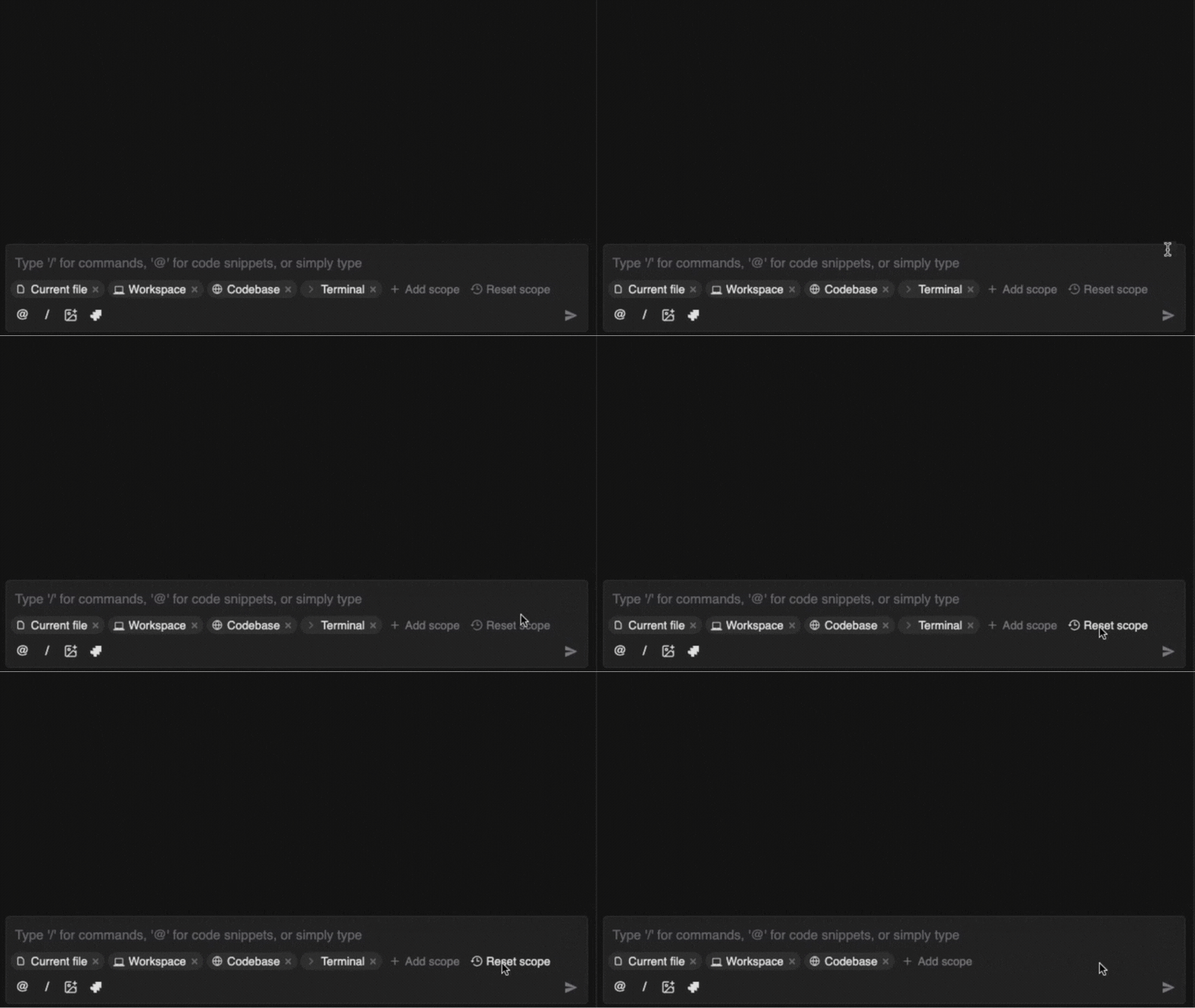
To reset the context scope, click the " **Reset scope"** option in the input window:
Resetting scope in Tabnine
#### Adding More Scope
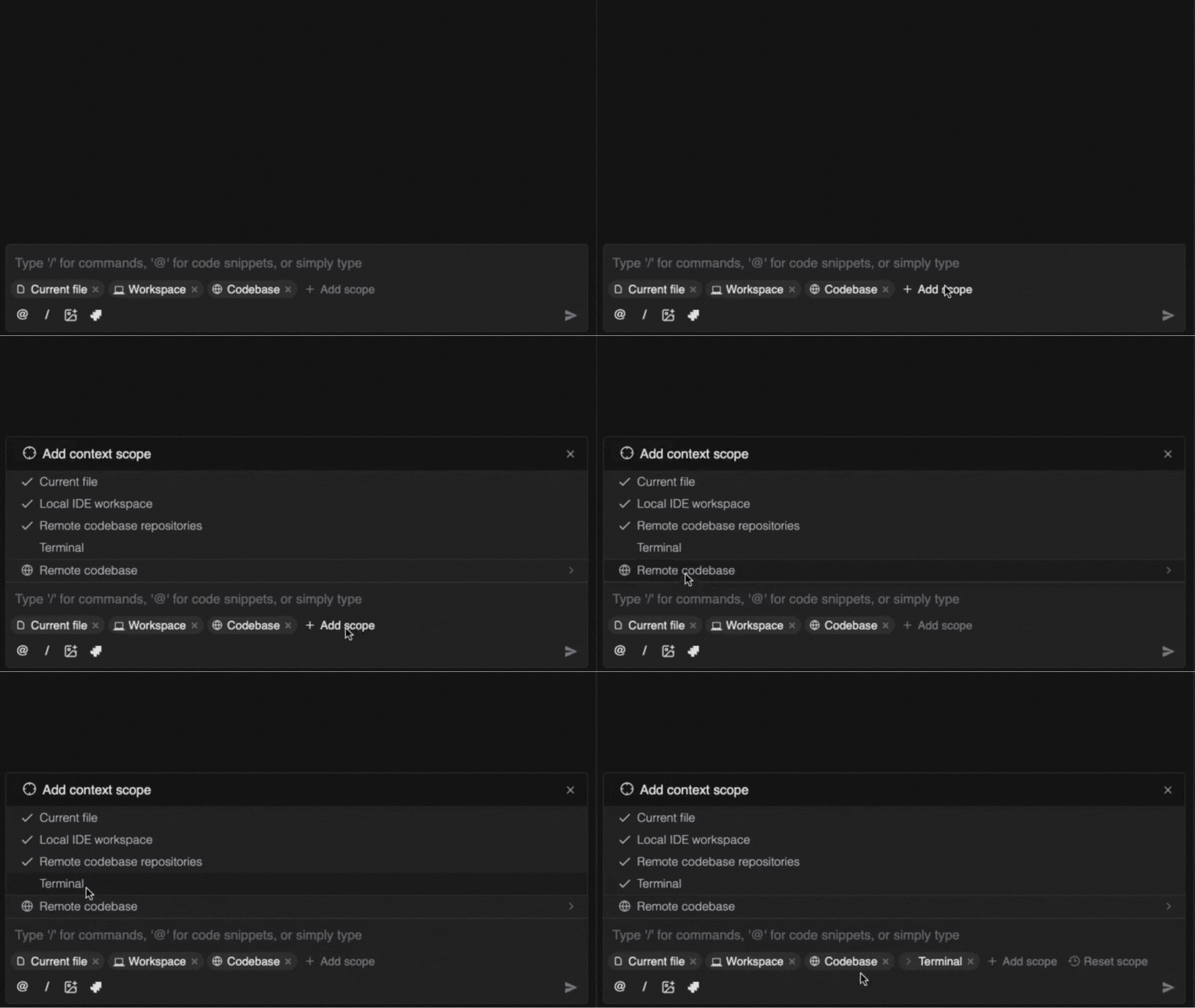
The user can add more scope by clicking the "+ **Add scope**" option and choosing the scope to add.
High-level scope can be added by checking the high-level option in the **Add context scope** menu.
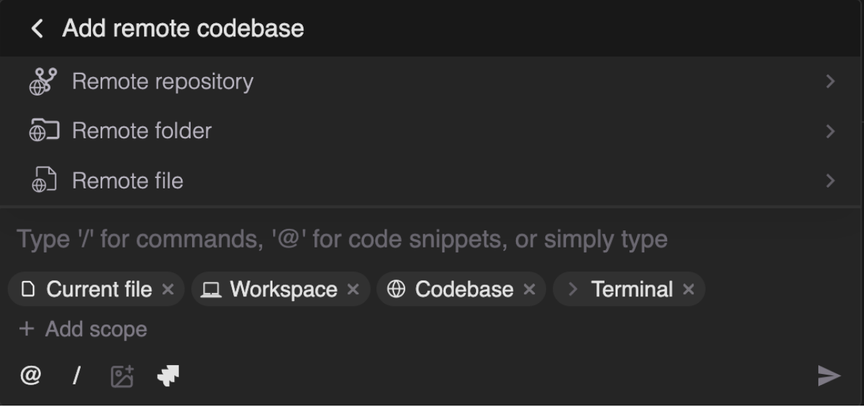
Remote repositories, remote folders, and/or remote files are added by clicking the relevant option in the menu and then select (or search) for the desired repository:
The Terminal is added by selecting it from the **+ Add scope** menu.
#### Removing Scope
Scope can be removed by simply clicking small "x" icon on the on each scope tag.
High-level scoping can also be removed by unchecking the high-level option in the Add context scope menu.
You can also tap the "x" option inside the input menu:
Deleting context scope within the input window
---
# Agent Instructions
This documentation is published with GitBook. GitBook is the documentation platform designed so that both humans and AI agents can read, navigate, and reason over technical content effectively. Learn more at gitbook.com.
## Querying This Documentation
If you need additional information that is not directly available in this page, you can query the documentation by asking a question.
Perform an HTTP GET request on the following URL with the `ask` and `goal` query parameters:
```
GET https://docs.tabnine.com/main/getting-started/tabnine-chat/chat-context/context-scoping.md?ask=&goal=
```
`ask` is the immediate question: it should be specific, self-contained, and written in natural language.
`goal` is what the user is ultimately trying to achieve, the reason they need the answer. Sharing it helps GitBook give you a better, more relevant answer. A goal is most helpful when it describes the outcome the user wants rather than restating the question. For example, with `ask=how do I create an API token`, a goal like `automate deployments from our CI pipeline` lets GitBook tailor the answer to that use case.
The response will contain a direct answer to the question and relevant excerpts and sources from the documentation.
Use this mechanism when the answer is not explicitly present in the current page, you need clarification or additional context, or you want to retrieve related documentation sections.
 **Reset scope"** option in the input window: