> For the complete documentation index, see [llms.txt](https://docs.tabnine.com/main/llms.txt). Markdown versions of documentation pages are available by appending `.md` to page URLs; this page is available as [Markdown](https://docs.tabnine.com/main/getting-started/tabnine-chat/chat-context/jira-connection.md).
# Jira Connection as Context
Tabnine AI code assistant: Jira connection
## What is the Jira Connection?
Tabnine's AI Chat allows you to connect to Atlassian Jira and extend the context of your chat with Jira issues. This capability enables you to ask Tabnine chat how to implement specific Jira issues or to validate whether your implementation aligns with the requirements detailed in those Jira issues. By bringing Jira into your IDE, you can streamline your workflow and minimize context-switching between different tools.
{% hint style="info" %}
**Note**
Tabnine Enterprise customers can integrate with either[ Jira Cloud or Jira Data Center](/main/welcome/readme/integrations/atlassian-jira.md#supported-matrix). While the setup process differs for the Enterprise admin, the workflow and experience remain the same for end-users, as outlined on this page. **We do support multiple instances for Jira Cloud**.
{% endhint %}
## How to Use the Jira connection
### Step 1: Connect to Jira
First, you need to connect your Tabnine plugin in the IDE to your Jira account:
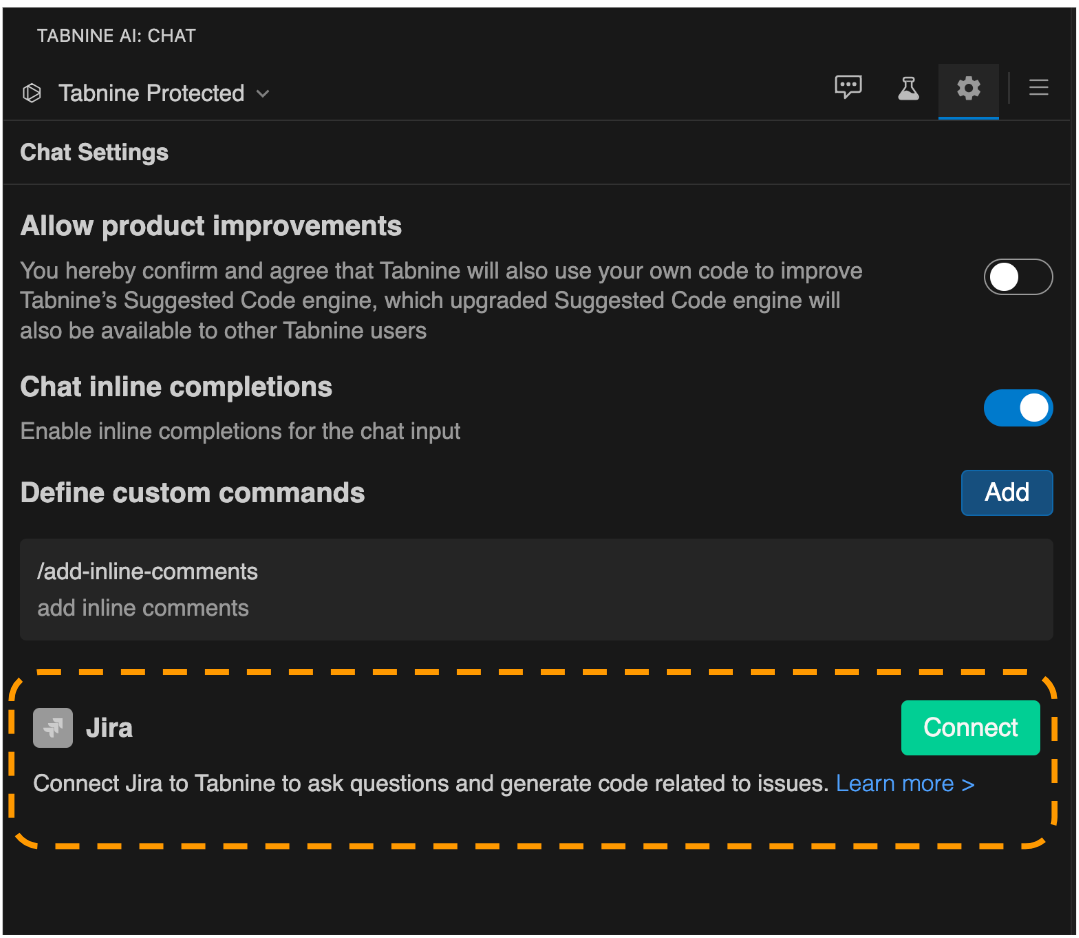
1. In your IDE, navigate to **Chat** **Settings.**
2. Under Settings, find the Jira section and click **Connect****.**
{% hint style="info" %}
**Troubleshooting**\
If the browser doesn’t open automatically for the next step, manually paste the following URL into your browser:
`/app/auth/jira`\
For example: [`https://console.tabnine.com/app/auth/jira`](https://console.tabnine.com/app/auth/jira)
{% endhint %}
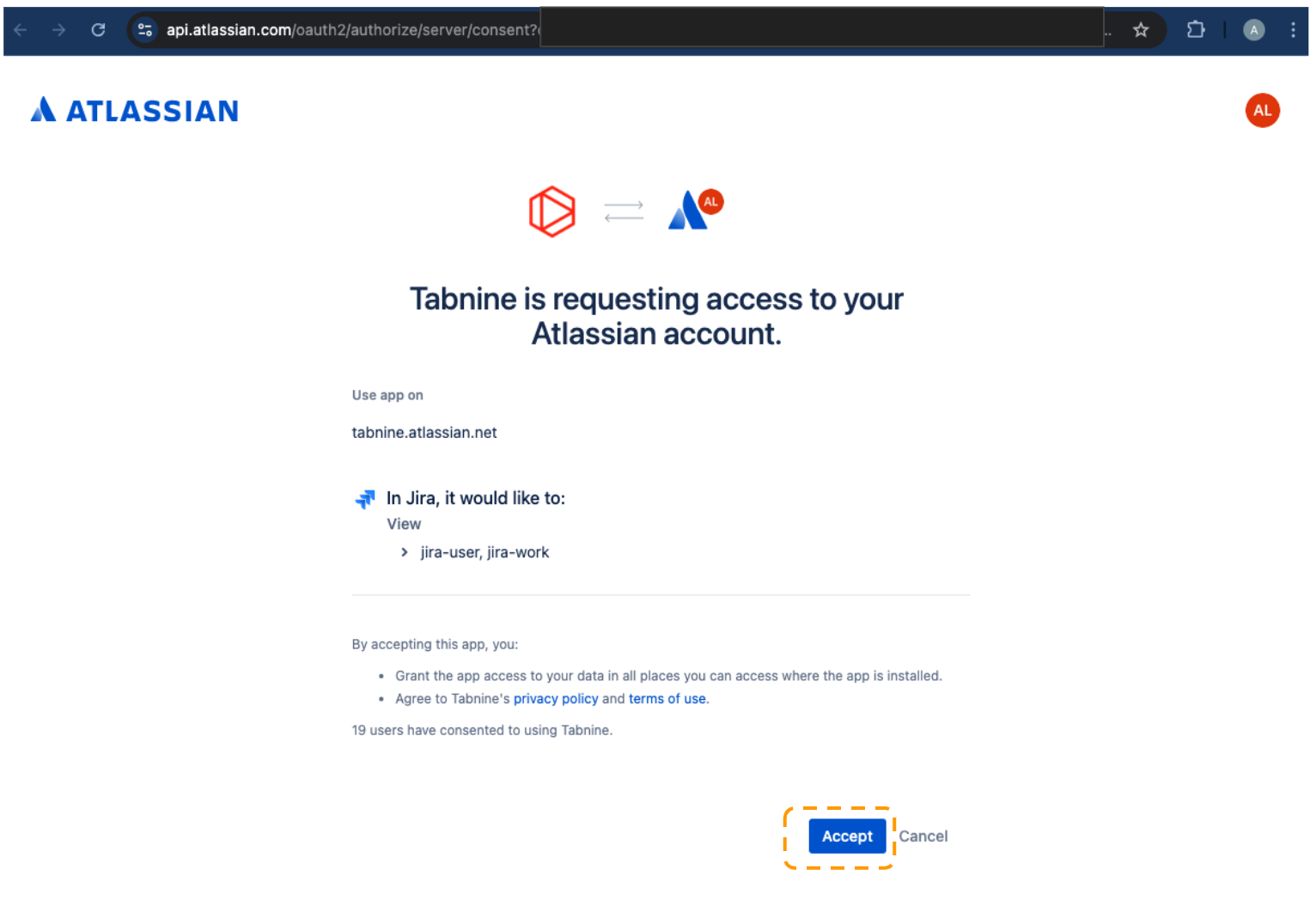
3. Next, authorize access to Jira. A browser window will open, directing you to your Jira account. You’ll be prompted to give Tabnine access to your Jira workspace. Click **Accept** to confirm connecting Tabnine to your Jira workspace.
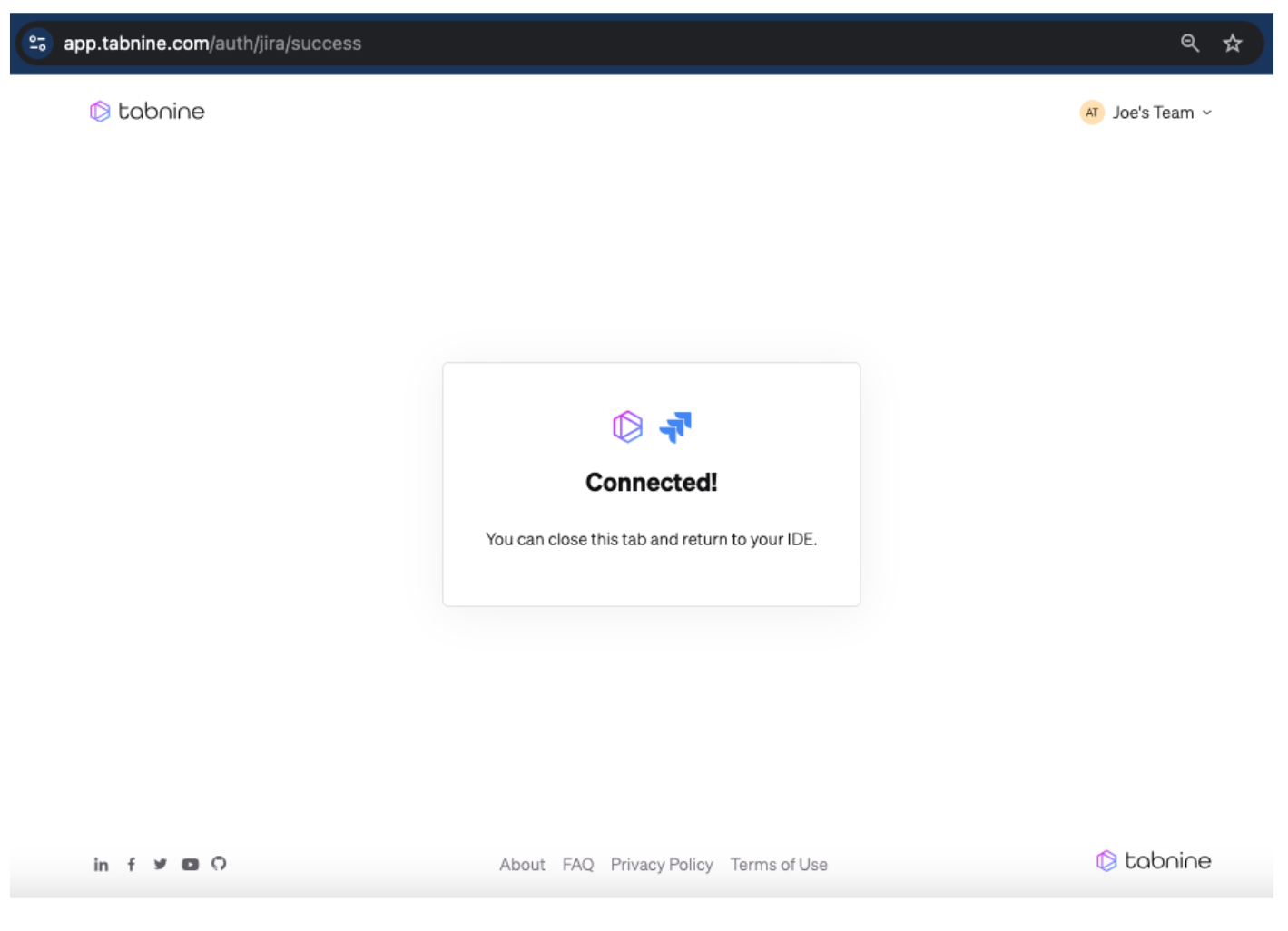
4. After authorization, you’ll be redirected to the Tabnine web application.
5. Return to your IDE. In the chat settings, you can see that Jira has been successfully connected. There will also be an option to Disconnect.
#### **Demo**
{% embed url="" %}
You’re now ready to start using Jira in Tabnine Chat!
### Step 2: Mentioning Jira Issues in Tabnine Chat
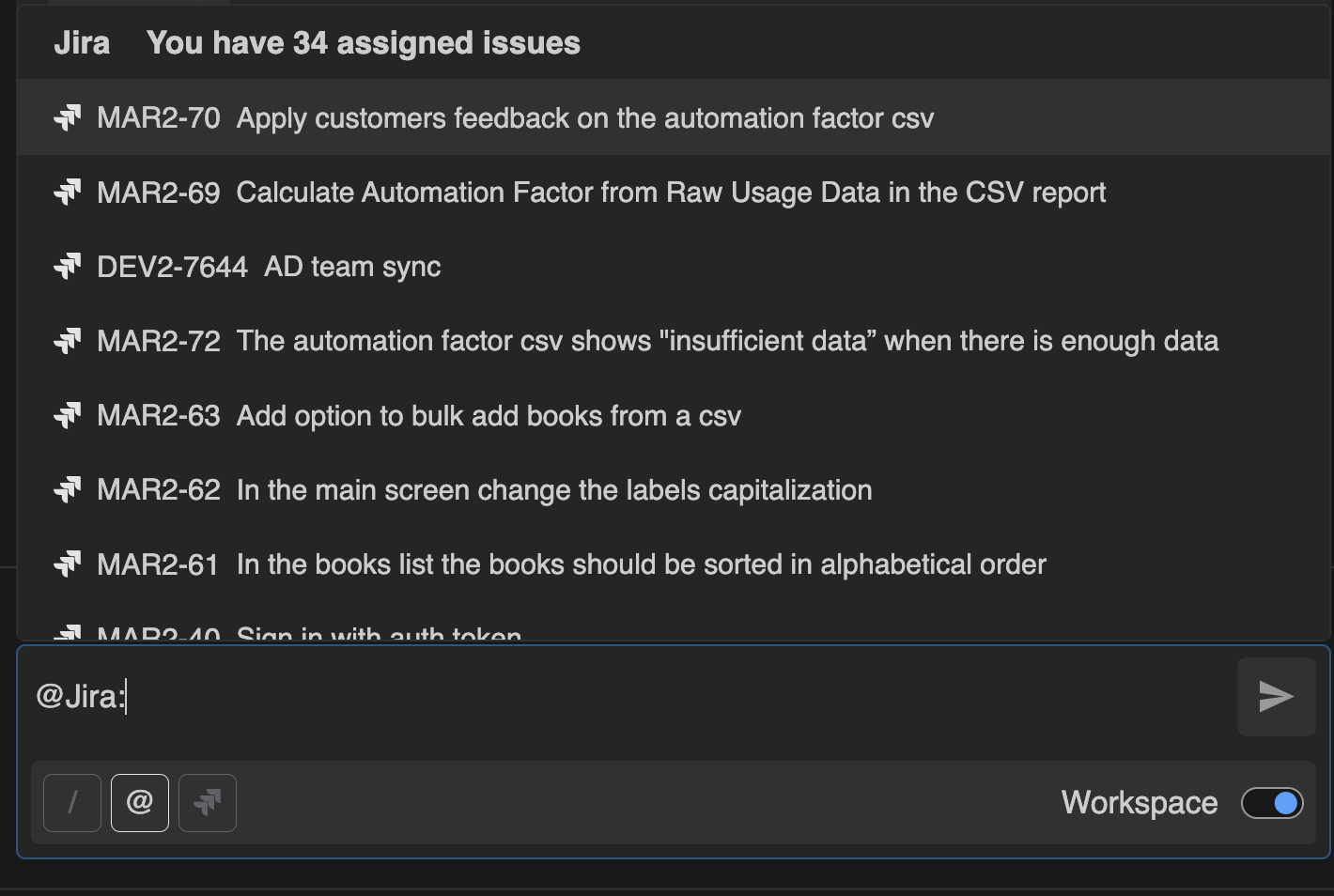
Once the connection is established, all the Jira issues assigned to you as an individual user are available in Tabnine. Tabnine uses the existing Jira user permissions to ensure that only the issues assigned to you are available.
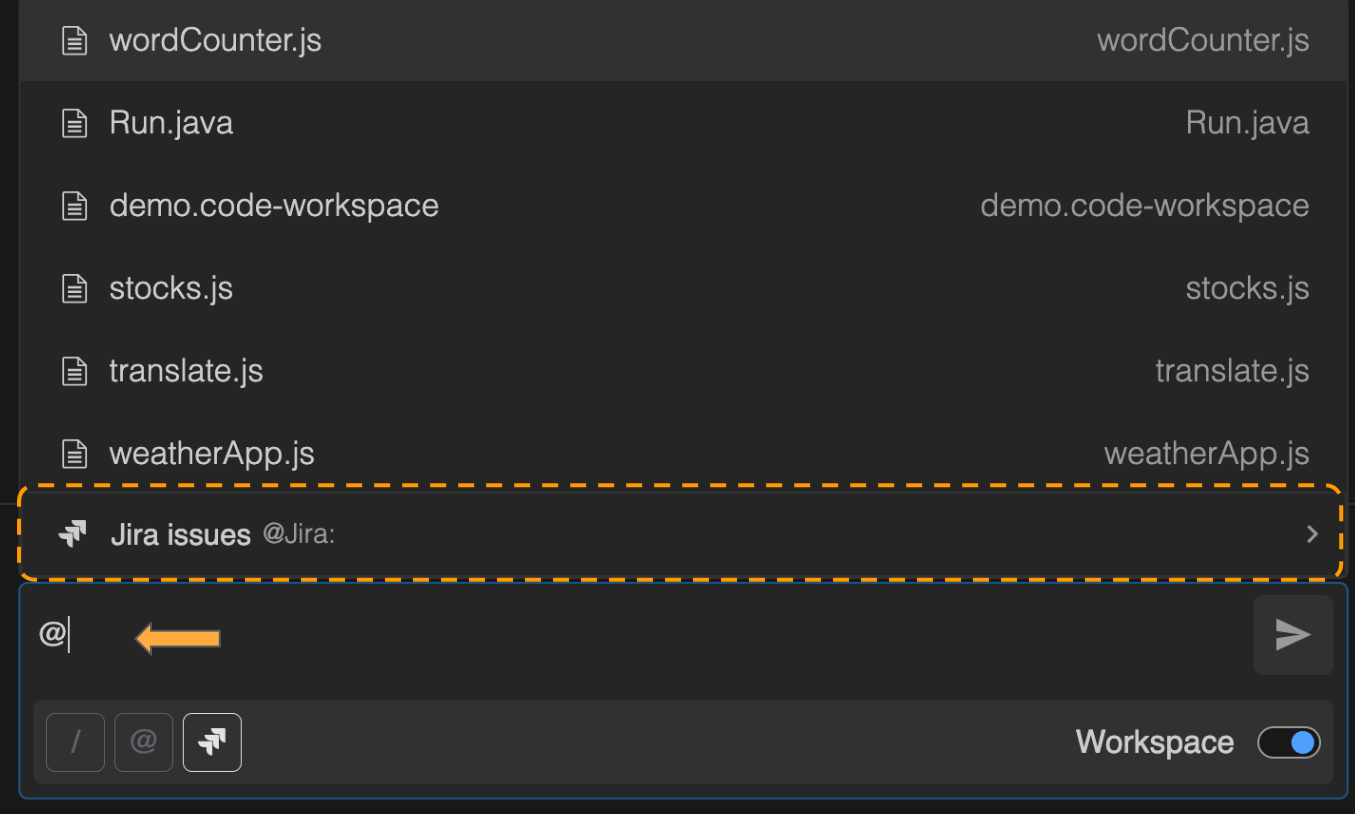
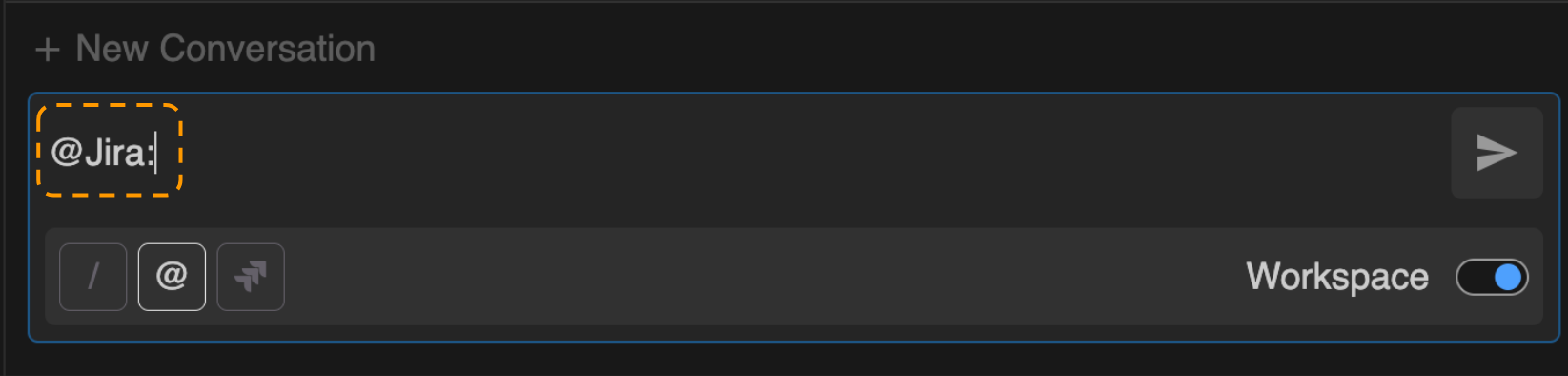
You can start referencing Jira issues in your chat prompts using any of these three triggers:
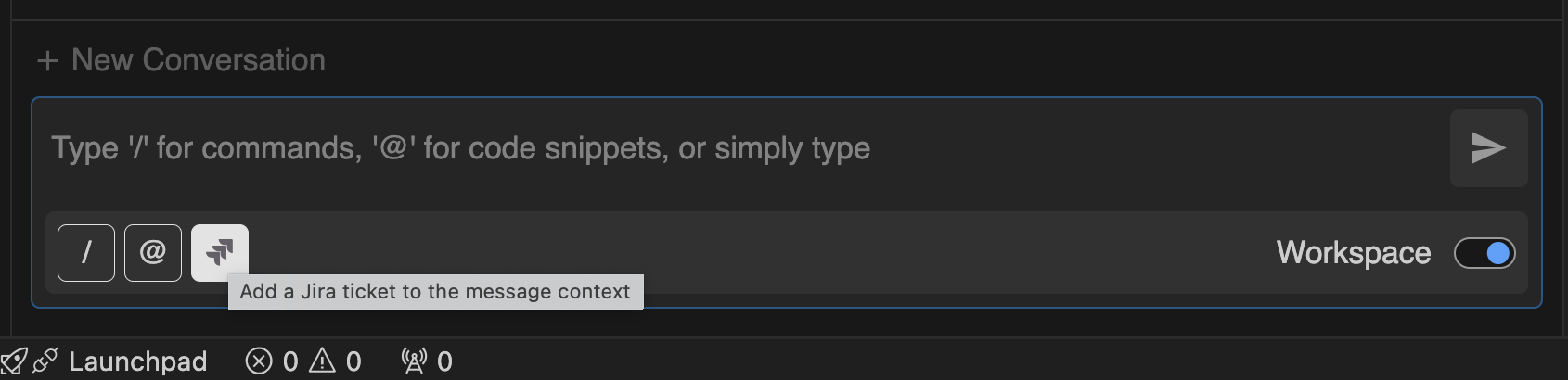
1. **Jira button:** Click the Jira button ( ) in Tabnine Chat.
2. **Mention button:** Click the mention button ( ) and choose Jira from the menu.
3. **Type directly:** Manually type **`@Jira:`** in the chat prompt.
**For all triggers:**
* You’ll see a list of assigned Jira issues ordered by the last update.
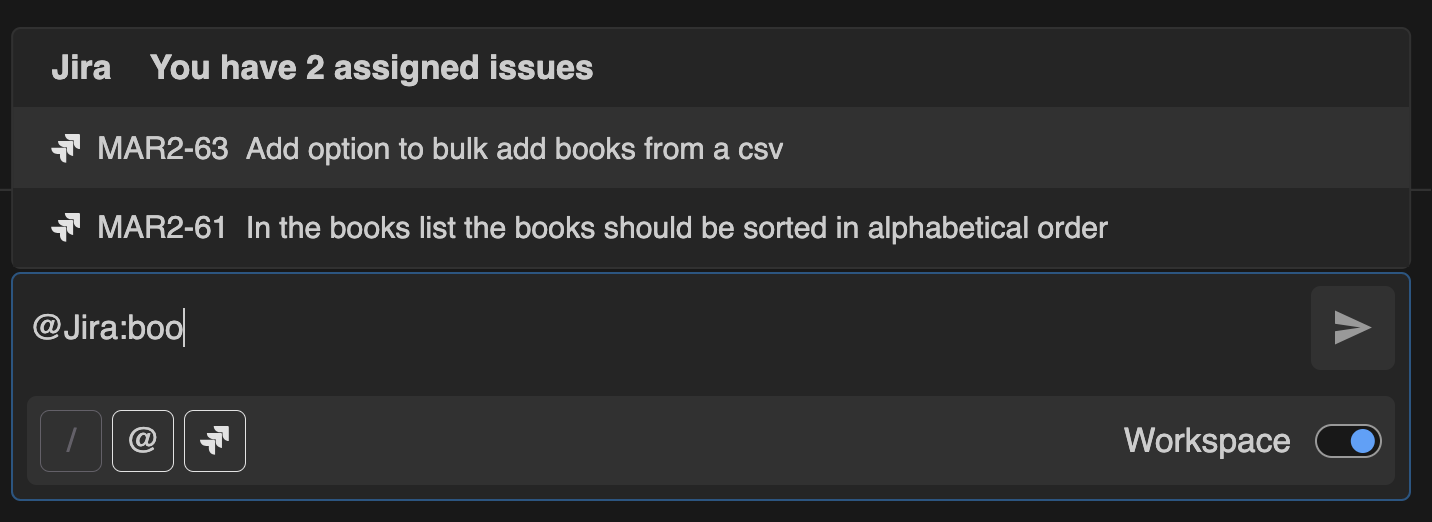
* You can filter the list by typing a prefix.
* **Hover for details:** See the issue title when hovering.
* **Multiple mentions:** Add more than one issue to a single prompt.
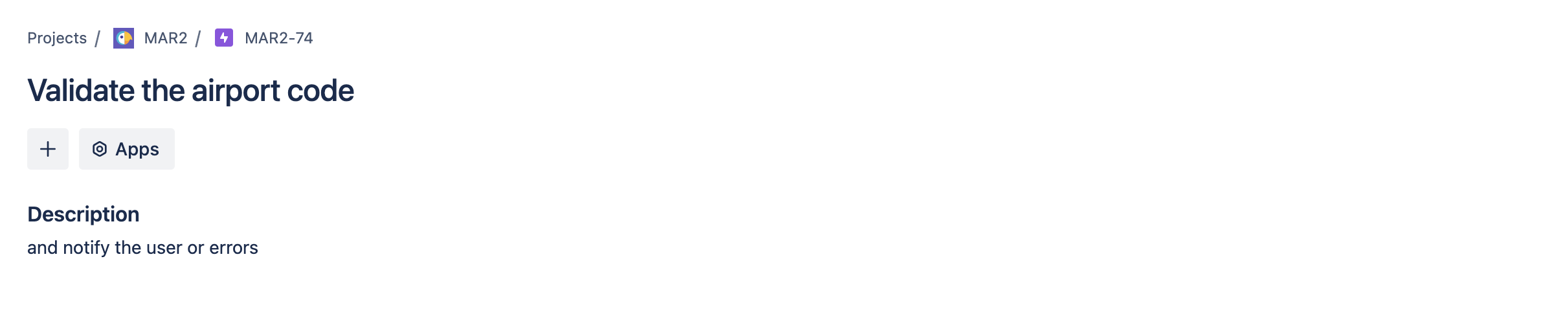
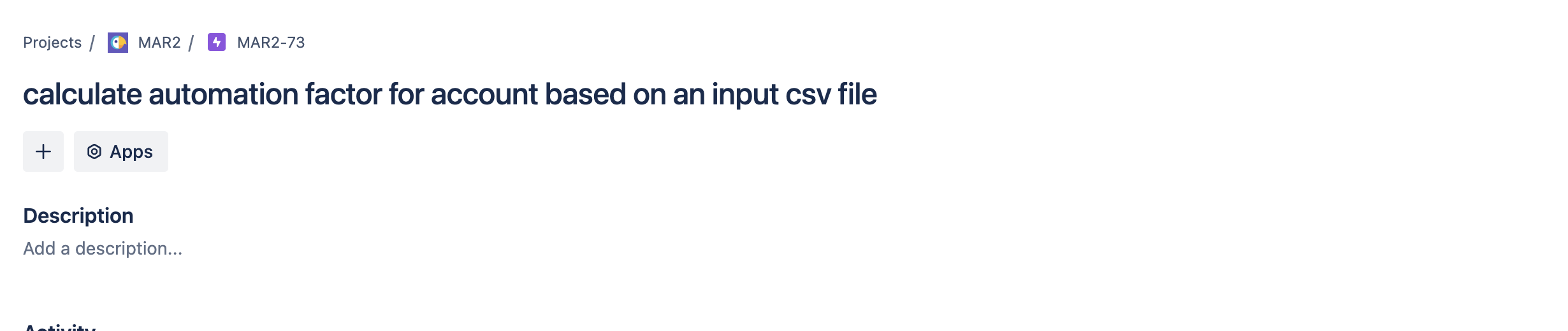
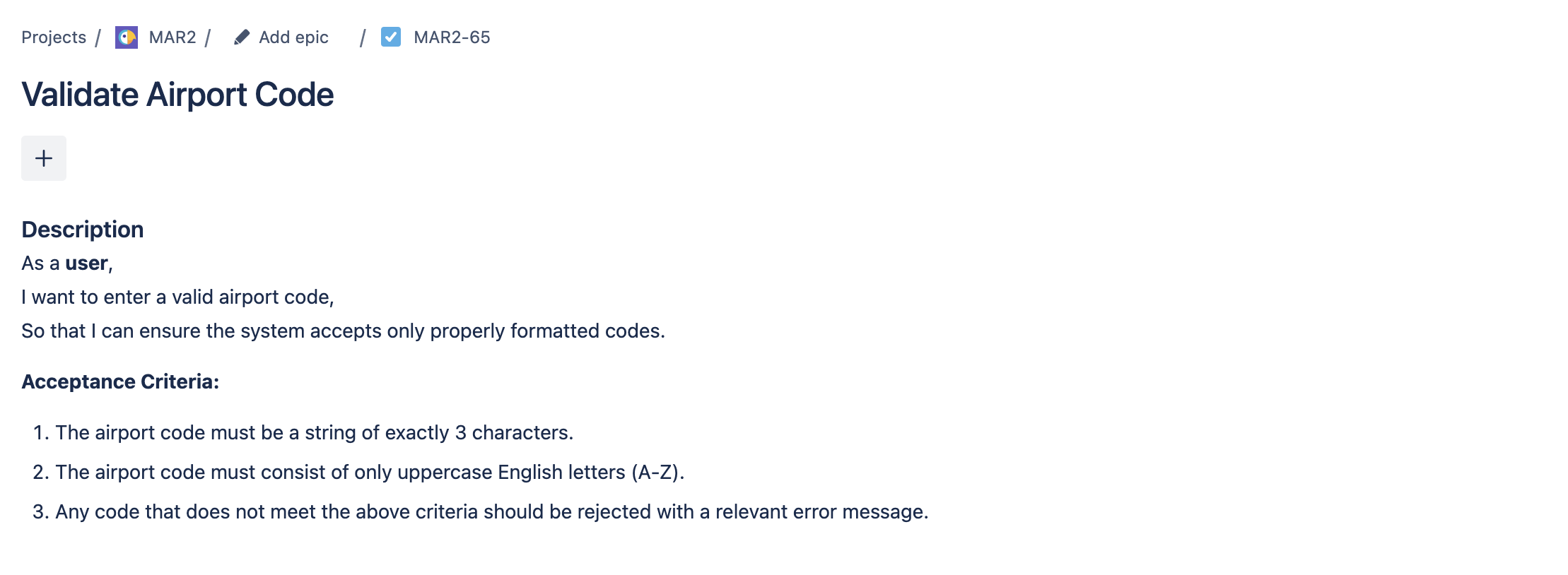
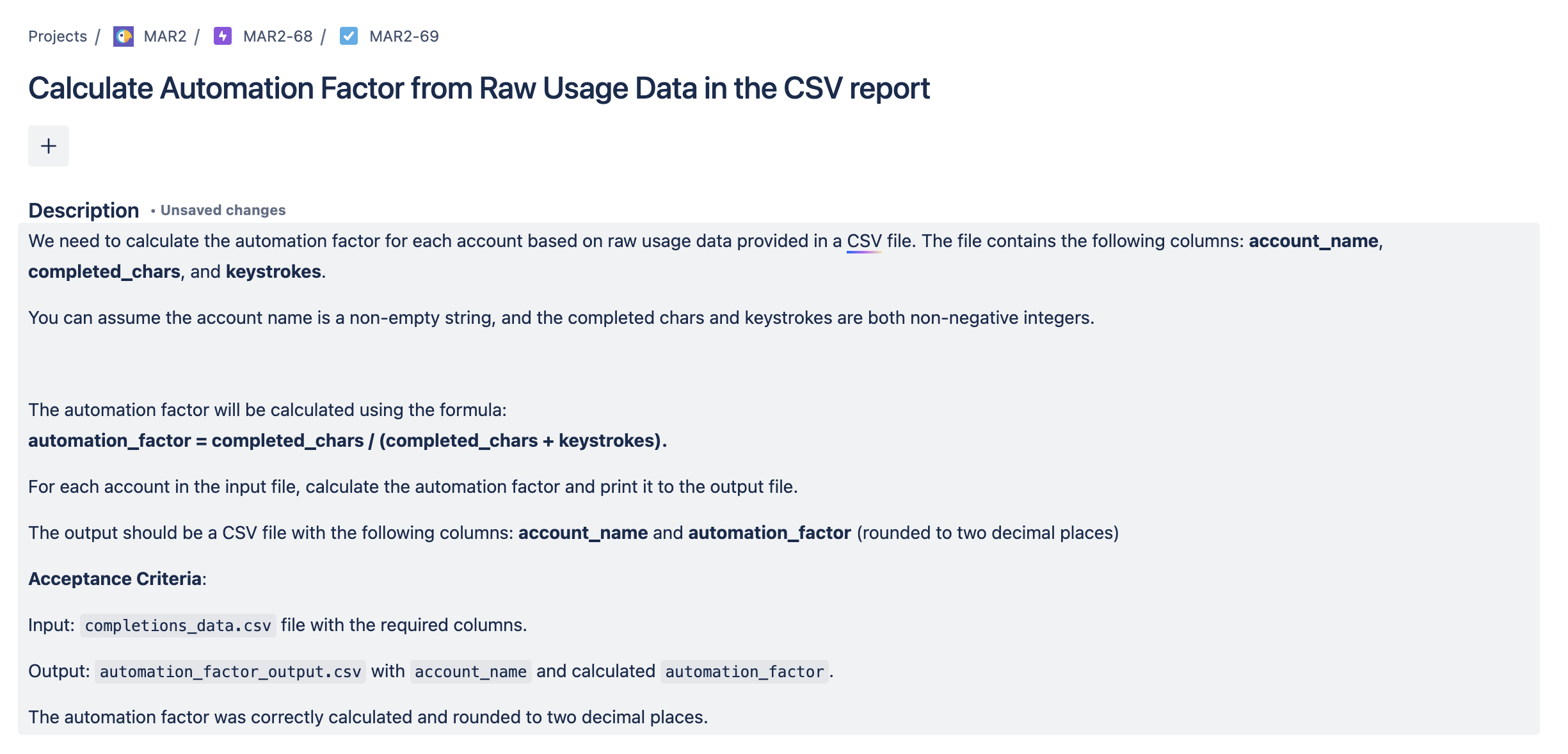
### Does the Jira connection work with any issue format?
The Jira connection is flexible and doesn’t require issues to follow a strict template, but certain formats are more effective for producing relevant results. Here are some guidelines:
**Optimized for:**
* Self-contained, smaller scope tasks
* Specific tasks that include enough detail
* Jira issues written in both formal and informal formats
**Not optimized for:**
* Large, broad issues that lack specificity
* General tasks without concrete details
* Complex, multistep tasks without clear breakdowns
#### Examples
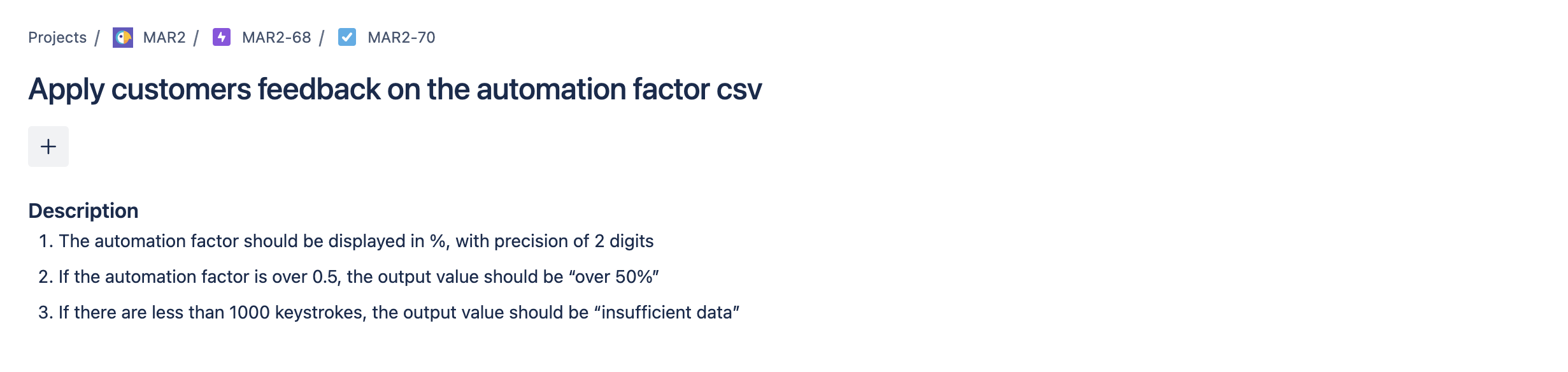
**Not a good fit:**
**Yes a good fit:**
### Use Cases for Jira Mentions
#### Implementing a Jira Issue:
Possible prompts:
Demo:
{% embed url="" %}
#### Code Validation:
Possible prompts:
Demo:
{% embed url="" %}
#### Multiple Issue Mentions:
Possible prompts:
---
# Agent Instructions
This documentation is published with GitBook. GitBook is the documentation platform designed so that both humans and AI agents can read, navigate, and reason over technical content effectively. Learn more at gitbook.com.
## Querying This Documentation
If you need additional information that is not directly available in this page, you can query the documentation by asking a question.
Perform an HTTP GET request on the following URL with the `ask` and `goal` query parameters:
```
GET https://docs.tabnine.com/main/getting-started/tabnine-chat/chat-context/jira-connection.md?ask=&goal=
```
`ask` is the immediate question: it should be specific, self-contained, and written in natural language.
`goal` is what the user is ultimately trying to achieve, the reason they need the answer. Sharing it helps GitBook give you a better, more relevant answer. A goal is most helpful when it describes the outcome the user wants rather than restating the question. For example, with `ask=how do I create an API token`, a goal like `automate deployments from our CI pipeline` lets GitBook tailor the answer to that use case.
The response will contain a direct answer to the question and relevant excerpts and sources from the documentation.
Use this mechanism when the answer is not explicitly present in the current page, you need clarification or additional context, or you want to retrieve related documentation sections.

 ) in Tabnine Chat.
 ) and choose Jira from the menu.