> For the complete documentation index, see [llms.txt](https://docs.tabnine.com/main/llms.txt). Markdown versions of documentation pages are available by appending `.md` to page URLs; this page is available as [Markdown](https://docs.tabnine.com/main/getting-started/tabnine-chat/image-prompts.md).
# Image Prompts
This documentation will show you how to use image prompts in Tabnine, along with examples.
In addition to written prompts, you can add an image to the context Tabnine Chat uses to produce results, otherwise known as Visual-to-Code.
{% hint style="info" %}
To use image prompts in Tabnine, you need to use one of the following models: Claude 3.5 Sonnet (both V1 and V2), Claude 3.7 Sonnet, and ChatGPT 4o. The allowed types of files are .png, .jpg, and .jpeg (the file can be up to 5 MB)
{% endhint %}
### Adding Image Prompts
Visual-to-Code has three options to get the image into the input field:
1. Click on the upload icon and select from the right location
2. Drag and drop the image into the window.
3. Cut/Copy and paste the image directly into the window.
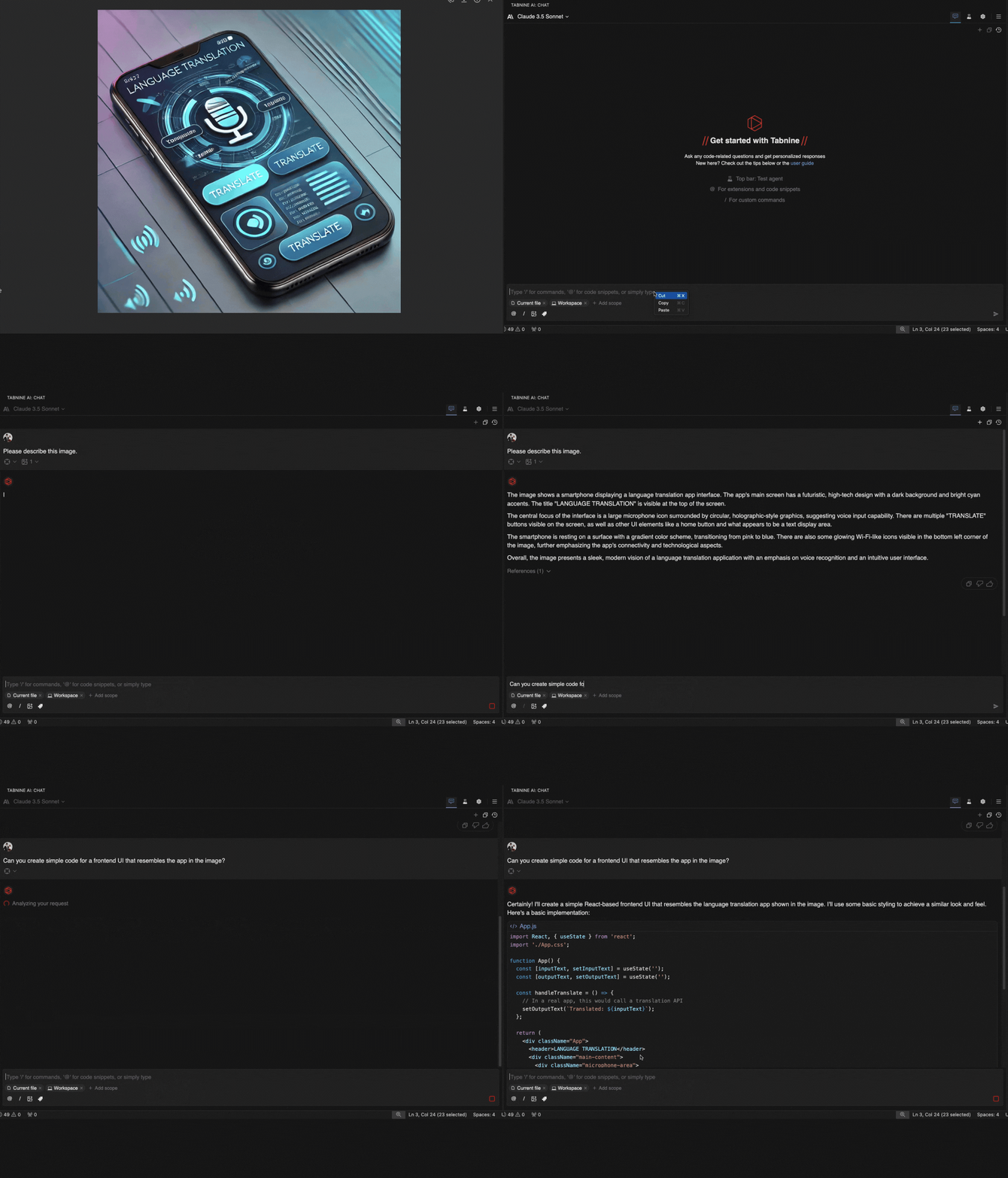
In this example, a user copies a generic image of an app and pastes it into Tabnine in order to create code that would mimic the fictional app:
Copying and pasting an image prompt into Tabnine, then asking for code
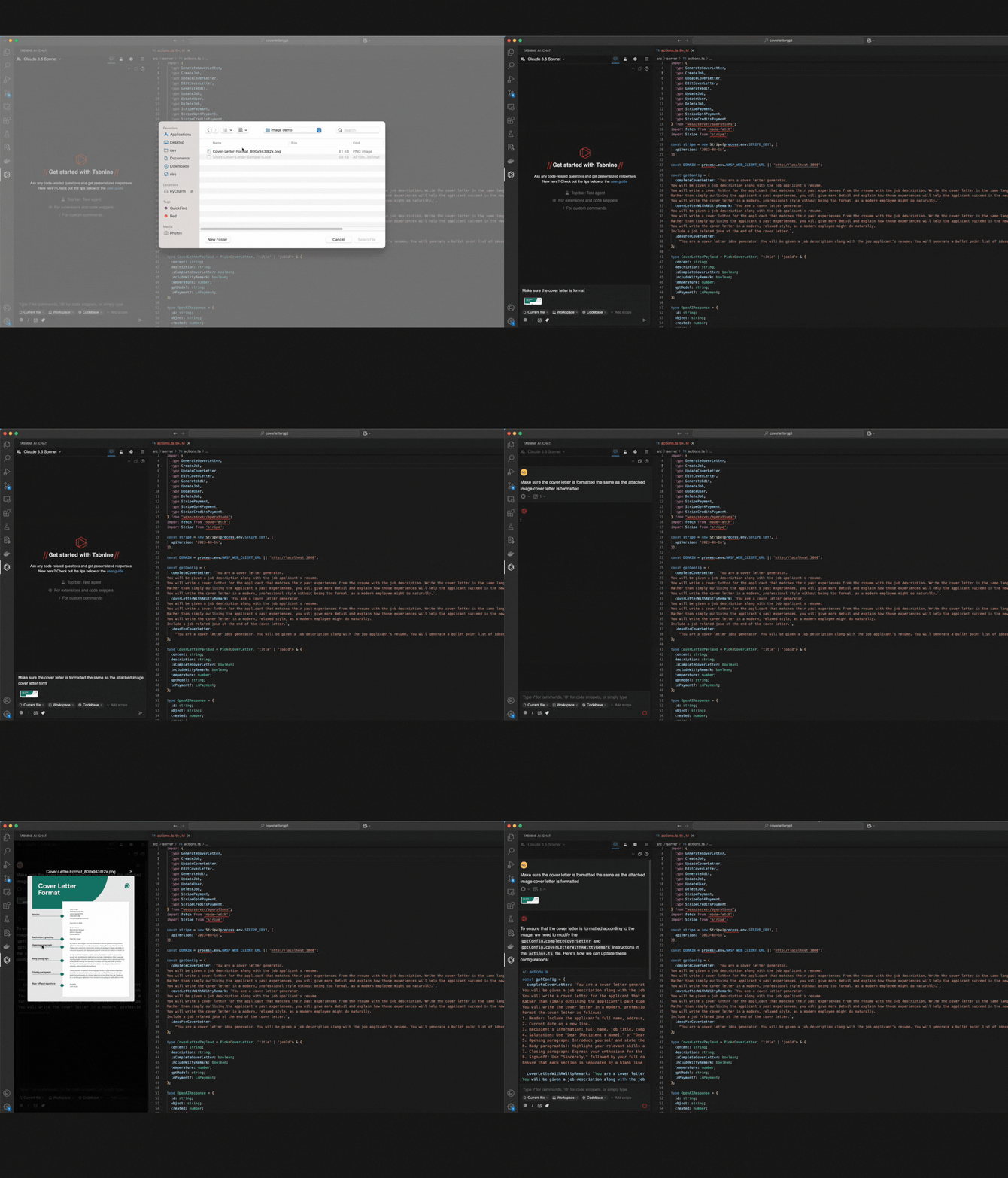
In a second example, a user uploads an image and requests Tabnine use it as a template for a cover letter:
Uploading an image, then asking Tabnine to mimic the formatting in the image
From there, you will be able to see thumbnails of all the uploaded images next to the text input window. Clicking on a thumbnail will display the image in a larger preview window.
Tabnine will immediately add any and all uploaded images into the context it considers for generating responses.
### Activating Image Prompts
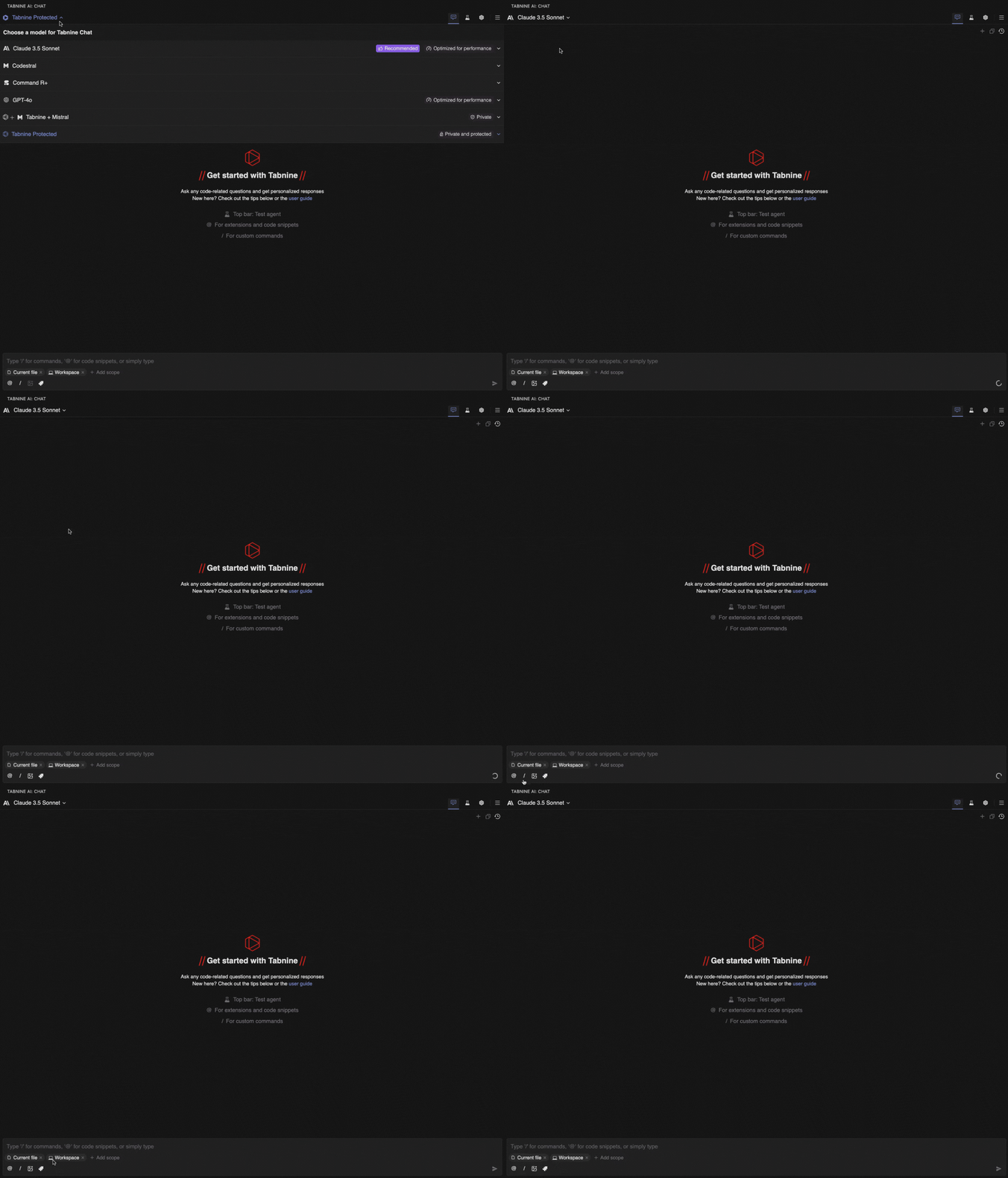
If your image icon is inactive, open a new chat and select either Claude 3.5 Sonnet or ChatGPT 4o in order to activate image prompting:
\\
---
# Agent Instructions
This documentation is published with GitBook. GitBook is the documentation platform designed so that both humans and AI agents can read, navigate, and reason over technical content effectively. Learn more at gitbook.com.
## Querying This Documentation
If you need additional information that is not directly available in this page, you can query the documentation by asking a question.
Perform an HTTP GET request on the following URL with the `ask` and `goal` query parameters:
```
GET https://docs.tabnine.com/main/getting-started/tabnine-chat/image-prompts.md?ask=&goal=
```
`ask` is the immediate question: it should be specific, self-contained, and written in natural language.
`goal` is what the user is ultimately trying to achieve, the reason they need the answer. Sharing it helps GitBook give you a better, more relevant answer. A goal is most helpful when it describes the outcome the user wants rather than restating the question. For example, with `ask=how do I create an API token`, a goal like `automate deployments from our CI pipeline` lets GitBook tailor the answer to that use case.
The response will contain a direct answer to the question and relevant excerpts and sources from the documentation.
Use this mechanism when the answer is not explicitly present in the current page, you need clarification or additional context, or you want to retrieve related documentation sections.