# Interacting with Tabnine Chat

How to interact with Tabnine Chat

You can interact and trigger Tabnine Chat in three ways:

1. [Free-form natural language prompts](#option-1-free-form-natural-language-prompt)
2. [Quick actions (global)](#option-2-quick-actions-global)
   * [User-defined quick actions (custom commands)](#user-defined-quick-actions)
3. [CodeLens (method scope)](#option-3-codelens-method-scope)
4. [Personalizing Tabnine Chat](#personalizing-tabnine-chat)

### Option 1: Free-form natural language prompt

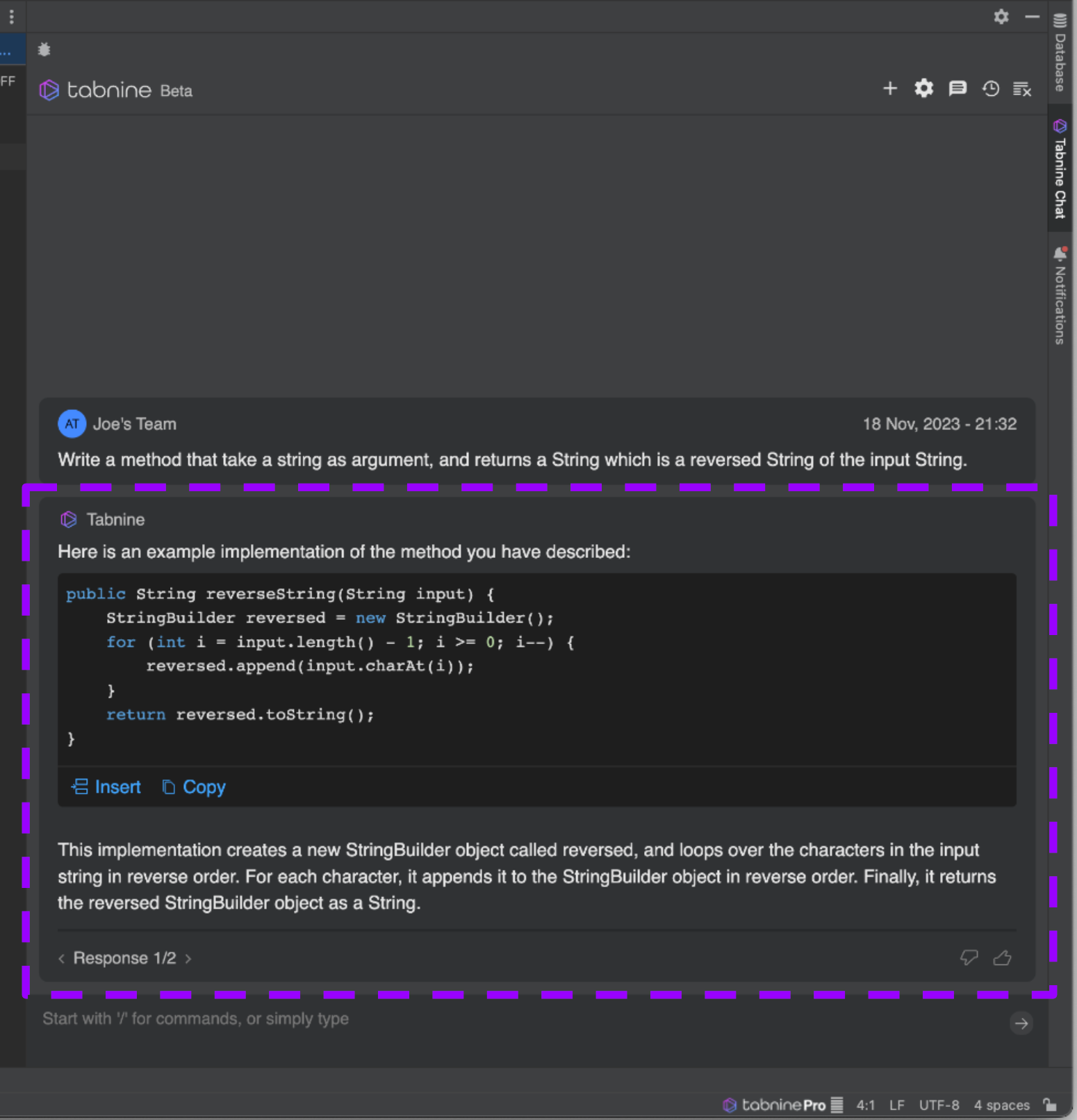
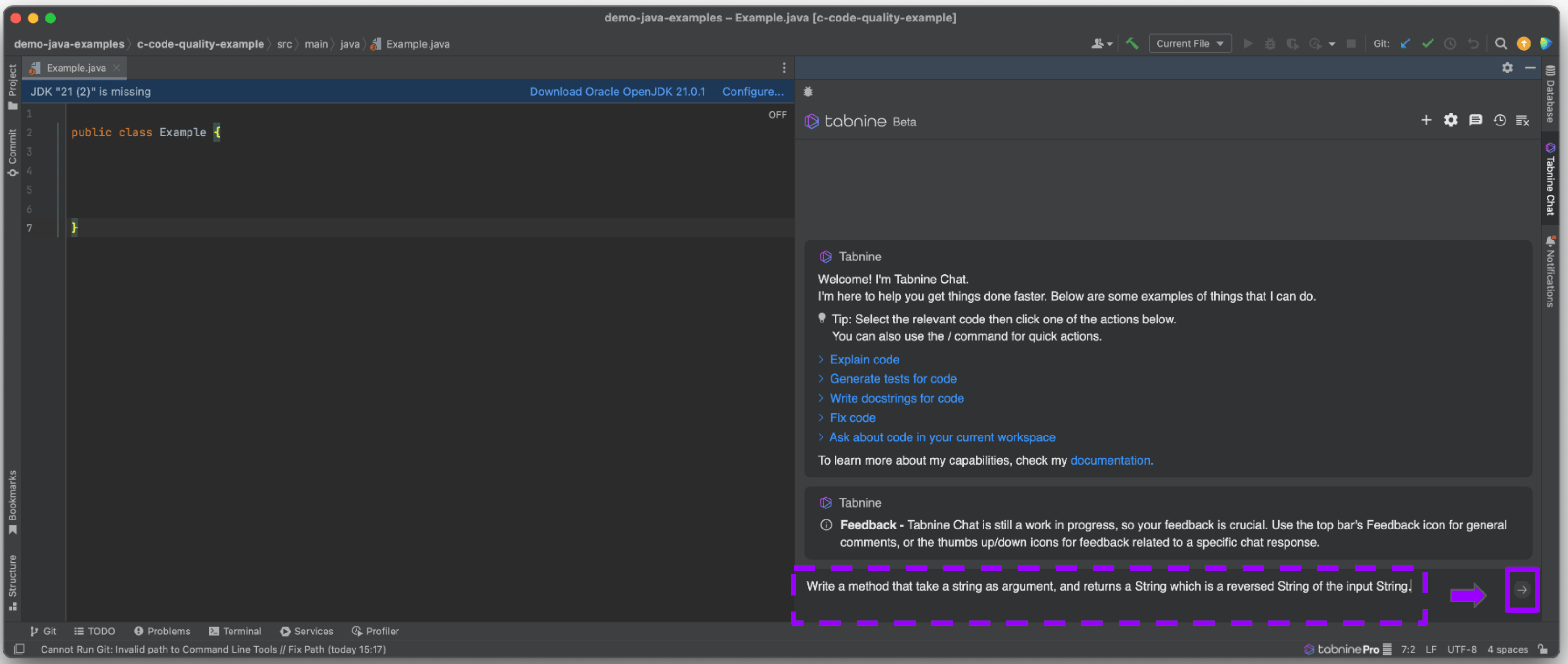
Go to the bottom of the Tabnine Chat panel, enter a free text question or instruction, and then click **Enter**.

<figure><img src="/files/WfXvRGesr6RAI2PQsOaL" alt=""><figcaption><p>Write a prompt in natural language and click <strong>Enter</strong></p></figcaption></figure>

Tabnine Chat's answer will be rendered quickly:

<figure><img src="/files/bmdRicXtnTBg0vdGhWgz" alt=""><figcaption></figcaption></figure>

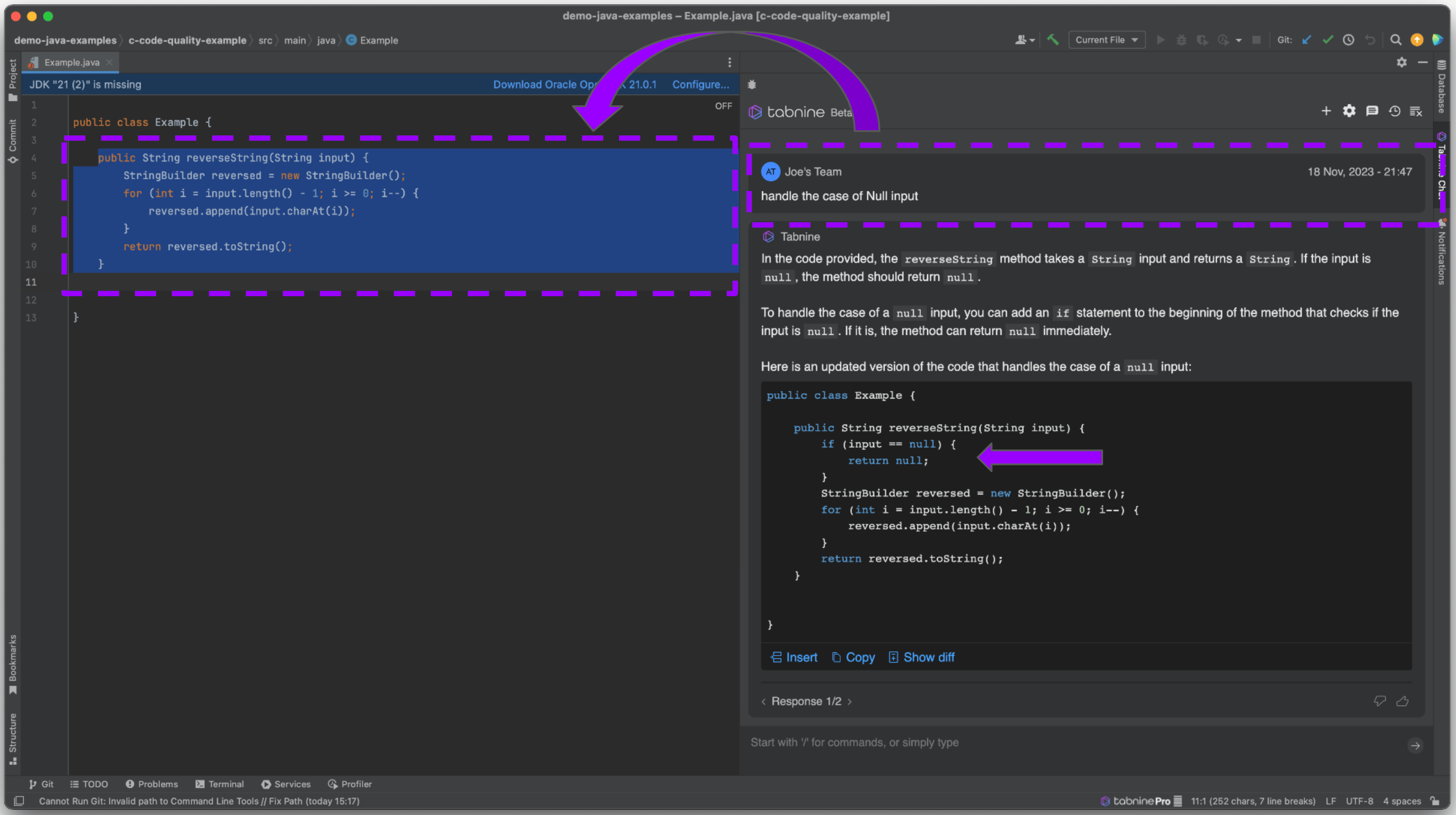
Another recommended option is to select a block of code from the current open file and then ask a question regarding this code. This draws Tabnine Chat's attention to the relevant code:

<figure><img src="/files/EpiYBoxfcQ8UYStehzRg" alt=""><figcaption><p>Select a code block and give a relevant instruction</p></figcaption></figure>

You can ask anything you want, but keep in mind that Tabnine Chat was designed to answer questions related to code. If you write good prompts that are specific, detailed, and to the point, you increase the chances of getting an accurate and useful result.

#### Mentions

In the natural language prompt, you can use Mentions.

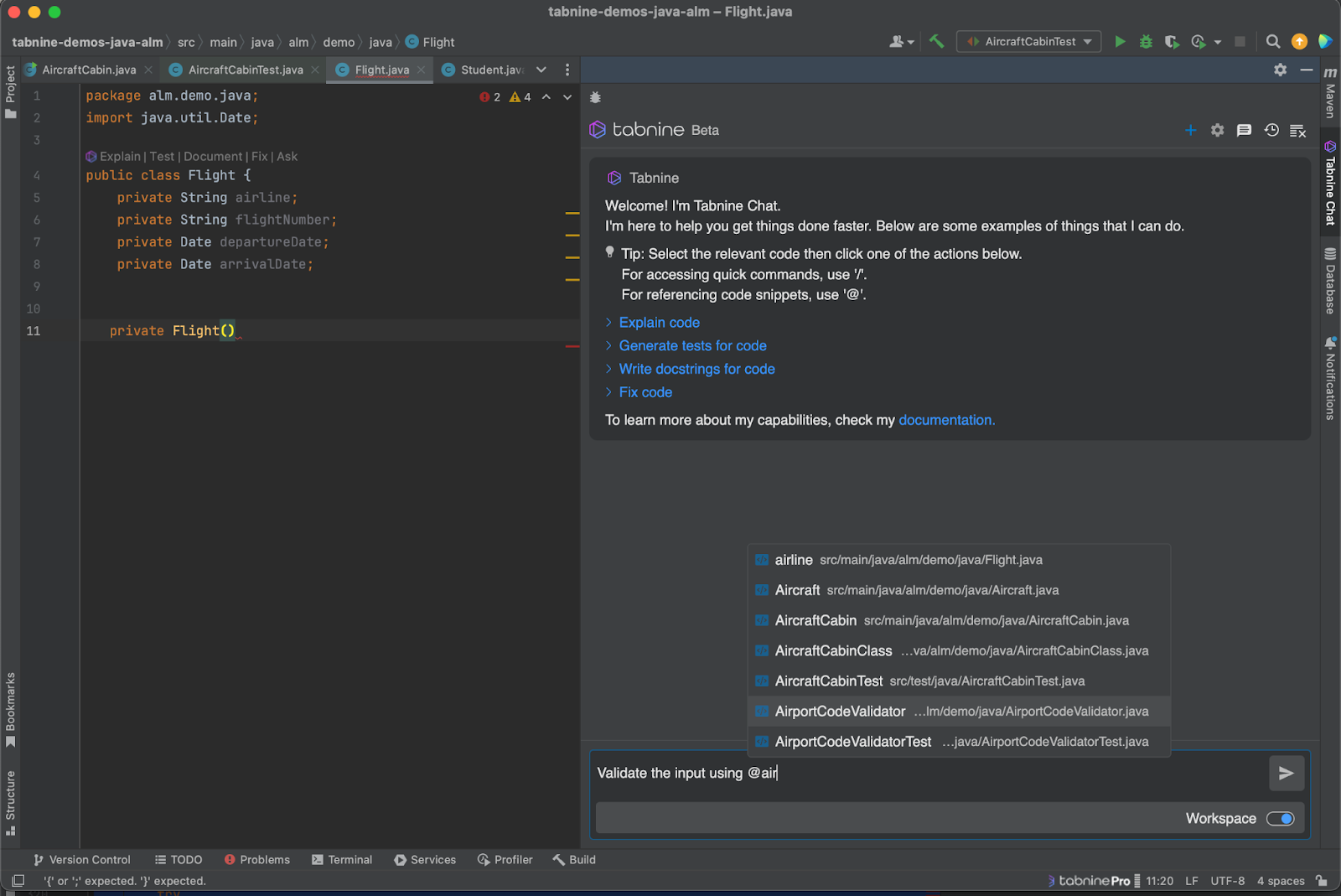
Mentions (using the @ mark) are a way to ask Tabnine Chat to use a specific code element (type, method, or class) from the workspace in the query context. Mentions allow the user to leverage their domain knowledge and help the AI by explicitly focusing it on relevant context from the workspace.

Notes:

1. Mentions work for each language with Language Server Protocol (LSP) support in the IDE.
2. Type 2-3 characters after the “@” to view the available code elements.

<figure><img src="/files/GhCXxHaZ5M2APGBb6AwI" alt=""><figcaption></figcaption></figure>

Learn more about the [Tabnine Chat context](/main/getting-started/tabnine-chat/chat-context/context-context-window.md) and [prompt engineering](/main/getting-started/tabnine-chat/prompt.md).

#### Symbols

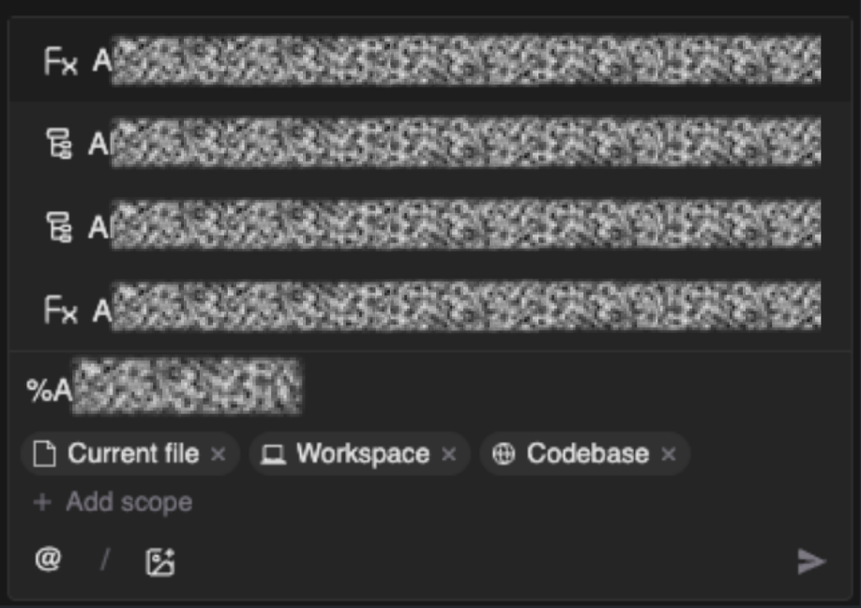
You can now use Mentions for "symbols." Symbols represent additional resources that you want to add to the chat context.

To add, use the % sign and then type the file you want.

<figure><img src="/files/mUxclOySb4ip4OO89v0g" alt=""><figcaption></figcaption></figure>

<table><thead><tr><th width="55.0087890625"></th><th></th></tr></thead><tbody><tr><td></td><td><strong>Language Availability for Symbol Mentions</strong></td></tr><tr><td><img src="/files/5sfyj6Ff5yzQEiEaR4NK" alt="" data-size="line"></td><td>Java</td></tr><tr><td><img src="/files/Wbt64kq09lDi6v7hzpG1" alt="" data-size="line"></td><td>Python</td></tr><tr><td><img src="/files/zAFDhscJj6oEvyI05ATH" alt="" data-size="line"></td><td>JavaScript</td></tr><tr><td><img src="/files/ZgE3H5CZOcjK1gfmE25V" alt="" data-size="line"></td><td>TypeScript</td></tr><tr><td><img src="/files/Vt7HMYuLjBbHBRgepOeL" alt="" data-size="line"></td><td>C</td></tr><tr><td><img src="/files/BLXj1GnqOqXgoBjjRHeI" alt="" data-size="line"></td><td>C#</td></tr><tr><td><img src="/files/OTWxp7lGk5D0CisV3fjQ" alt="" data-size="line"></td><td>C++</td></tr></tbody></table>

### Option 2: Quick Actions (Global)

Some tasks or instructions are common, so Tabnine Chat includes them as built-in actions.

The following actions operate on the selected code:

* **explain-code:** Explains what the selected code is doing
* **generate-test-for-code:** Writes tests for the selected code
* **document-code:** Suggests documentation for the selected code
* **fix-code:** Fixes the errors (detected by the IDE) for the selected code

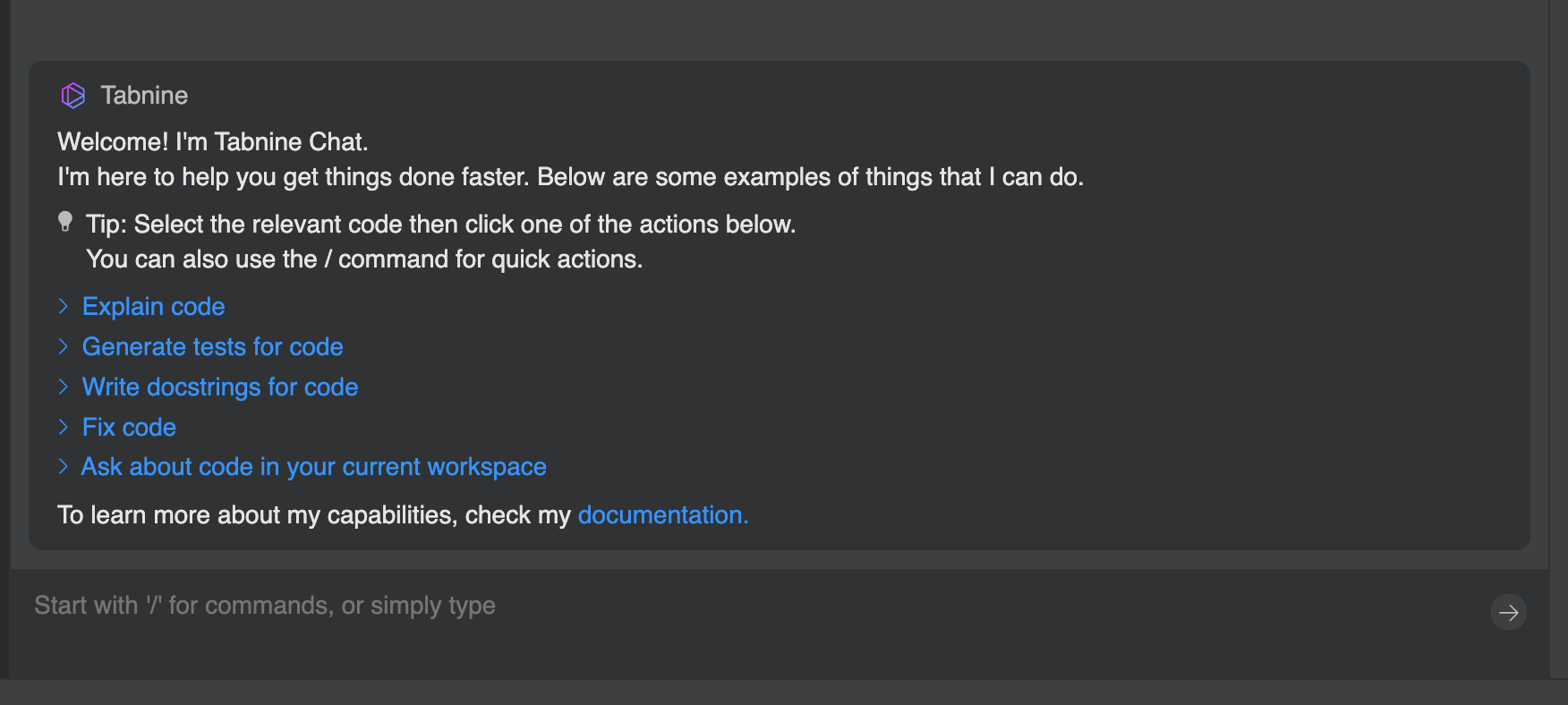
You can trigger quick actions by clicking the relevant links when you start a new chat session:

<figure><img src="/files/IQQBZgk8ne7pVCPBsbqd" alt=""><figcaption><p>Click quick action links on new chat</p></figcaption></figure>

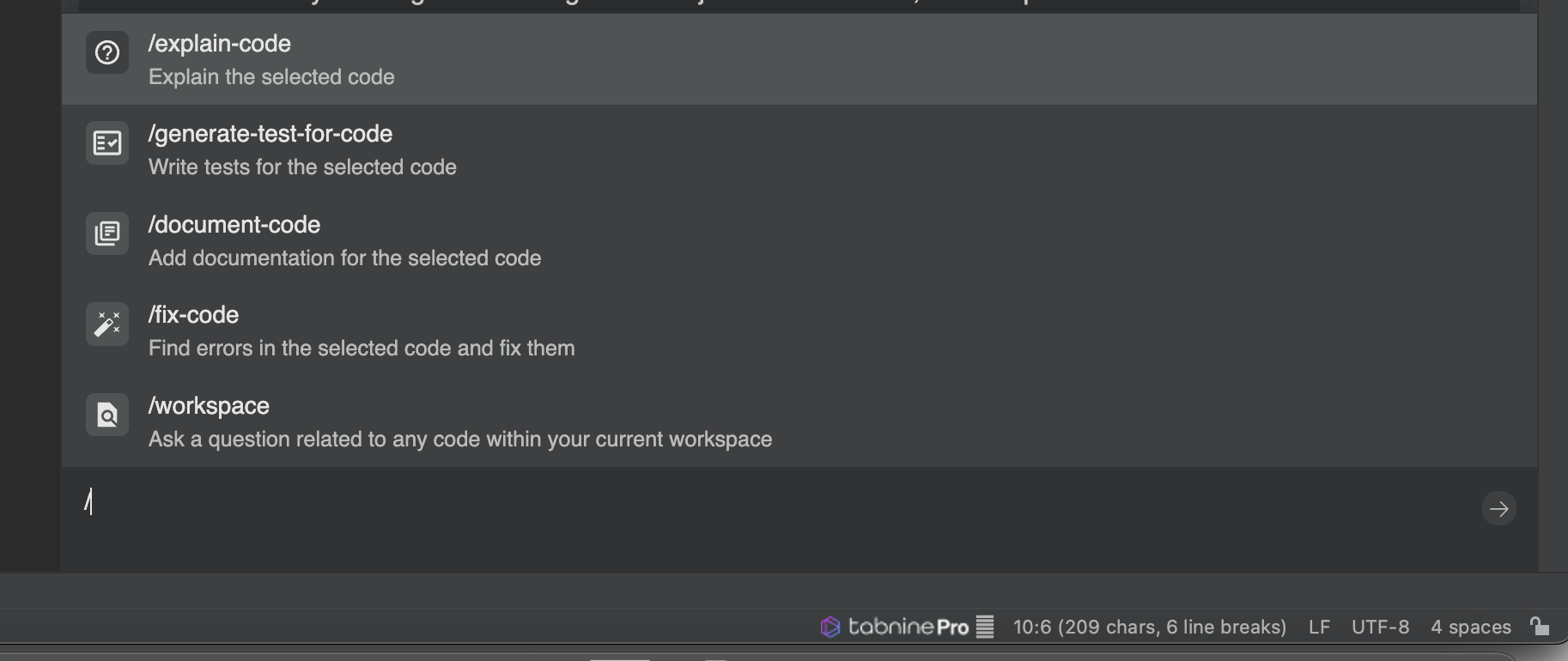
Another option is to use "/" to view the available quick actions. Select the action you want and click **Enter.**

<figure><img src="/files/AN8XvGNYvOIsgnooEg9o" alt=""><figcaption><p>Click "/" to view the available actions</p></figcaption></figure>

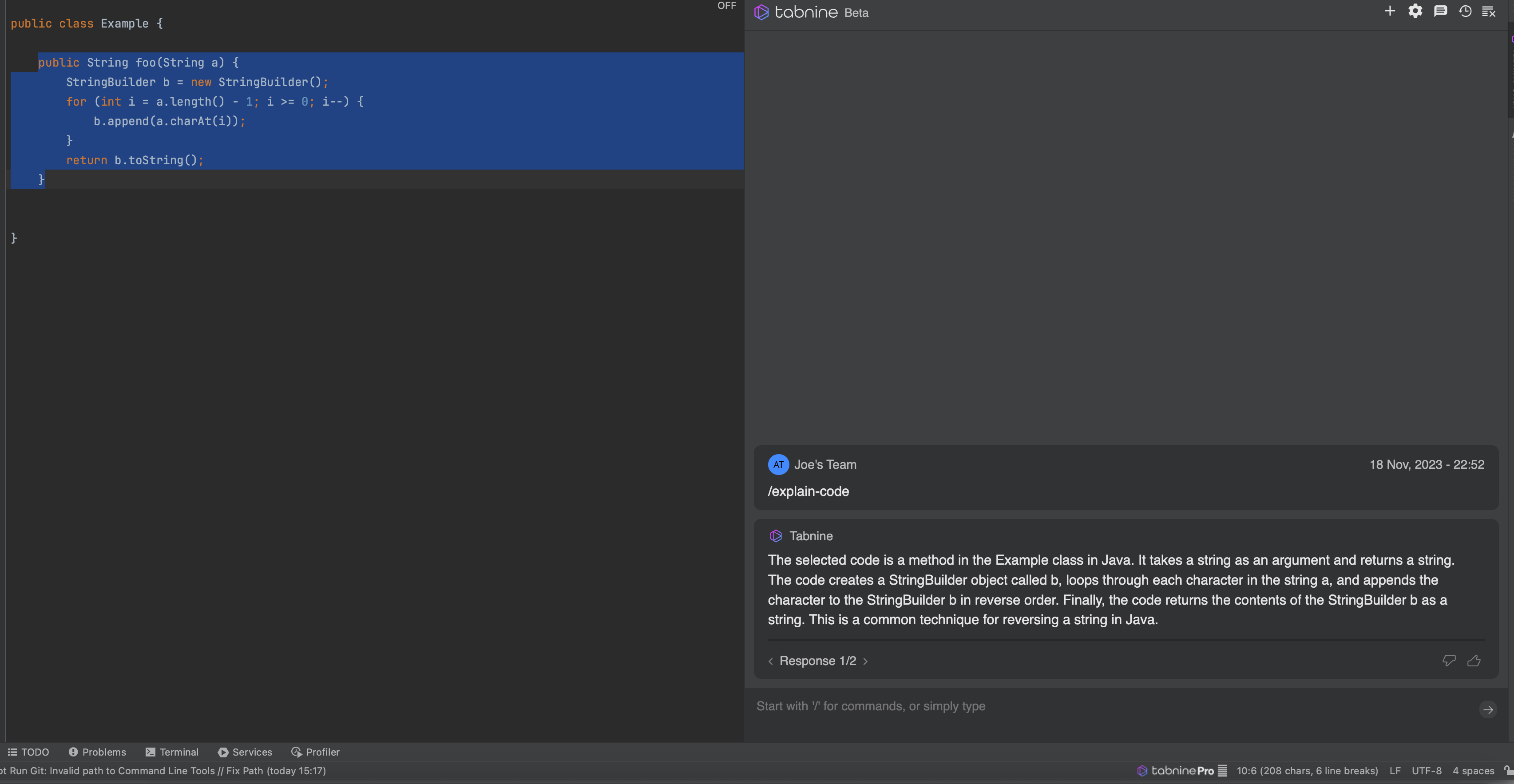
<figure><img src="/files/f3lmuIvkNEdtypX2ncR4" alt=""><figcaption><p>Example of "Explain code" action</p></figcaption></figure>

#### User-defined quick actions

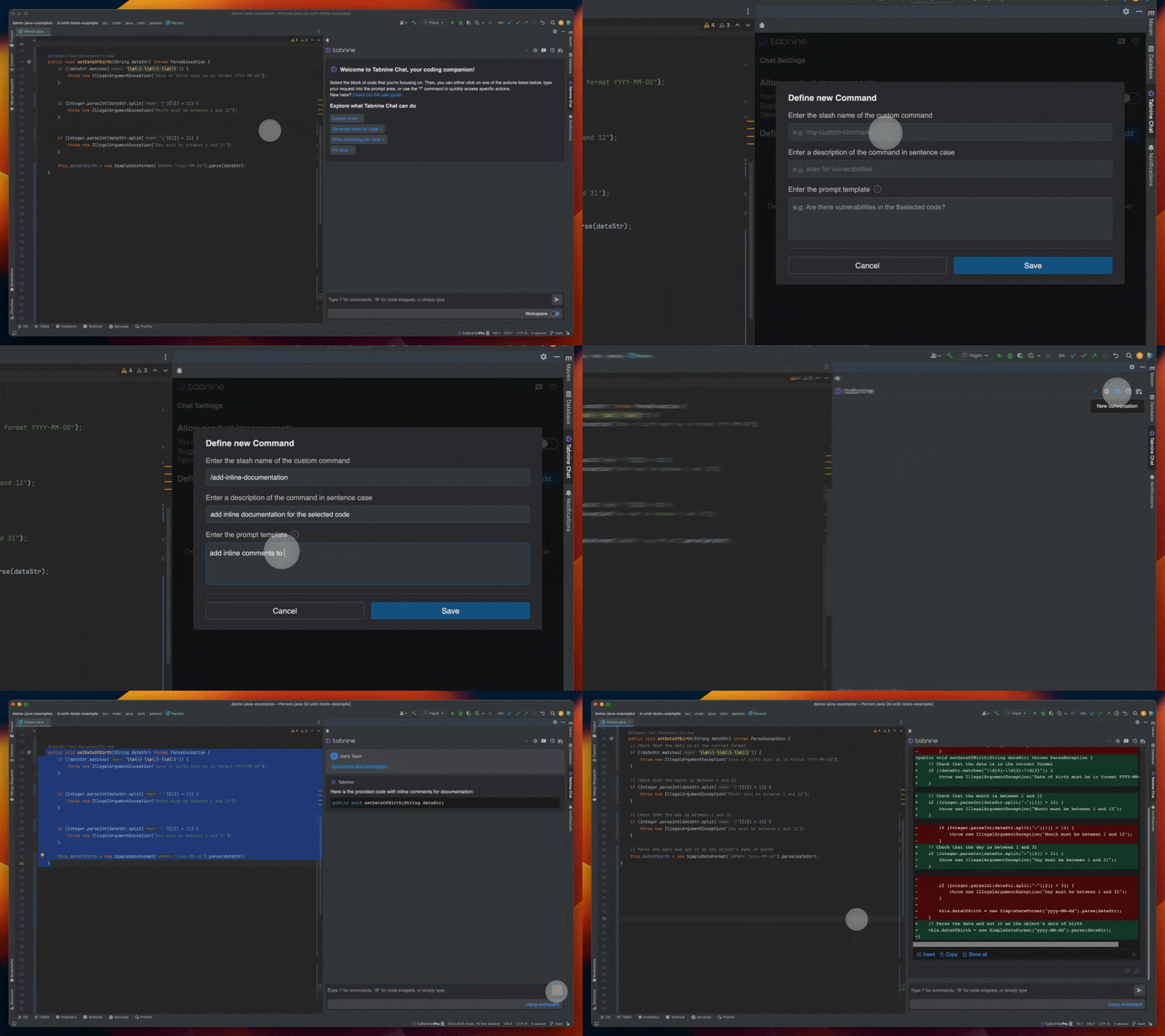
In addition to the predefined commands provided by Tabnine, you can define your own custom commands. This can be useful for repetitive tasks that are specific to your domain:

<figure><img src="/files/VTEcjcE09biLZr5u4FR6" alt=""><figcaption></figcaption></figure>

To define your own quick action, follow these steps:

1. Click on the **Settings** (<img src="/files/7htTerJyBPFIv0kKQGT0" alt="" data-size="line">) icon in Tabnine Chat.
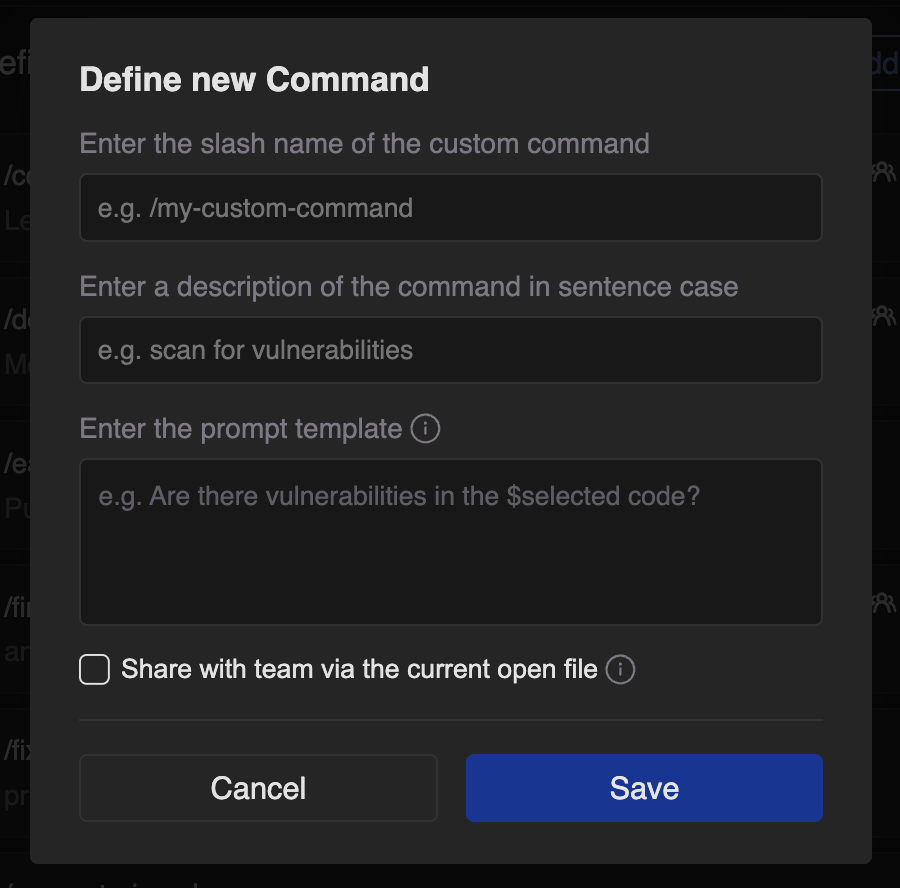
2. On the Chat settings tab, click **Add** in the **Define custom commands** section.
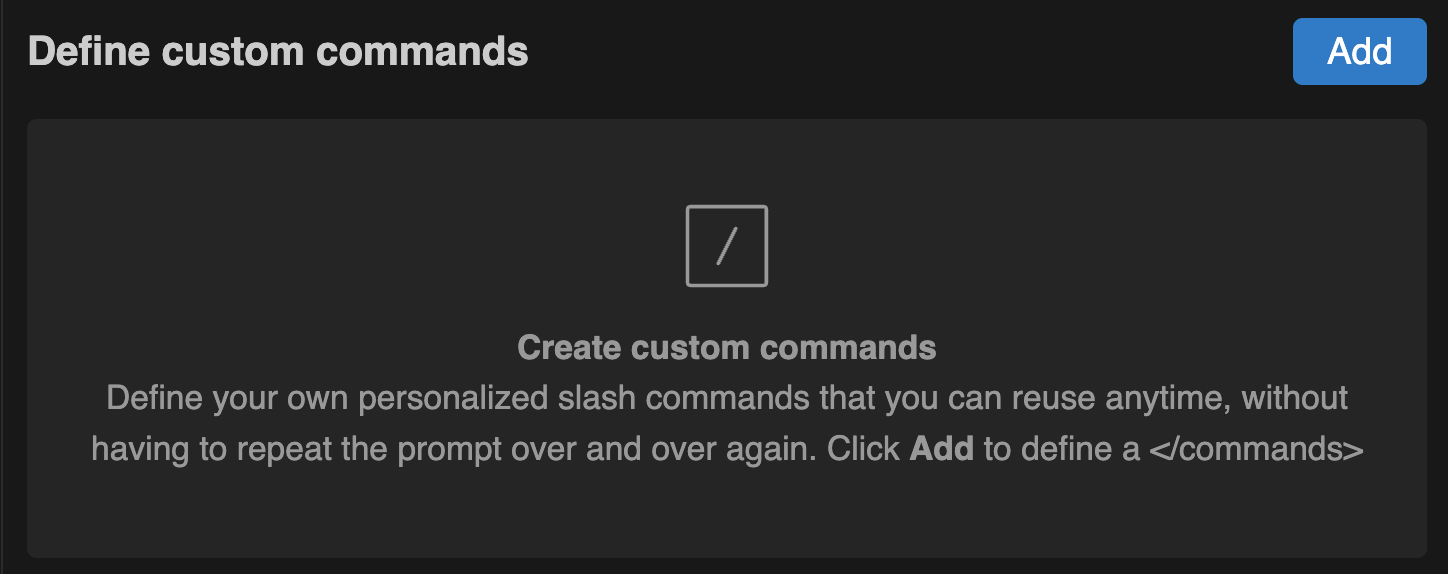
<figure><img src="/files/qSoY2vpUGGsML1HCsgBu" alt=""><figcaption></figcaption></figure>

3. Fill in the slash command name, description, and prompt template fields in the **Define new Command** dialog. Use **$** to include a reference to the **selected code** or **open file** and save the custom command.

<figure><img src="/files/2klRVM7TwukWVhEG2k2i" alt=""><figcaption></figcaption></figure>

4. Use the slash ("/") to trigger your custom commands in the chat prompt.

{% hint style="info" %}
Note: Custom commands are personal and saved on the local machine, per IDE. They're not shared between different users or between different IDEs on the same machine. However, they can be shared through an SCM tool.
{% endhint %}

#### Sharing Custom Commands

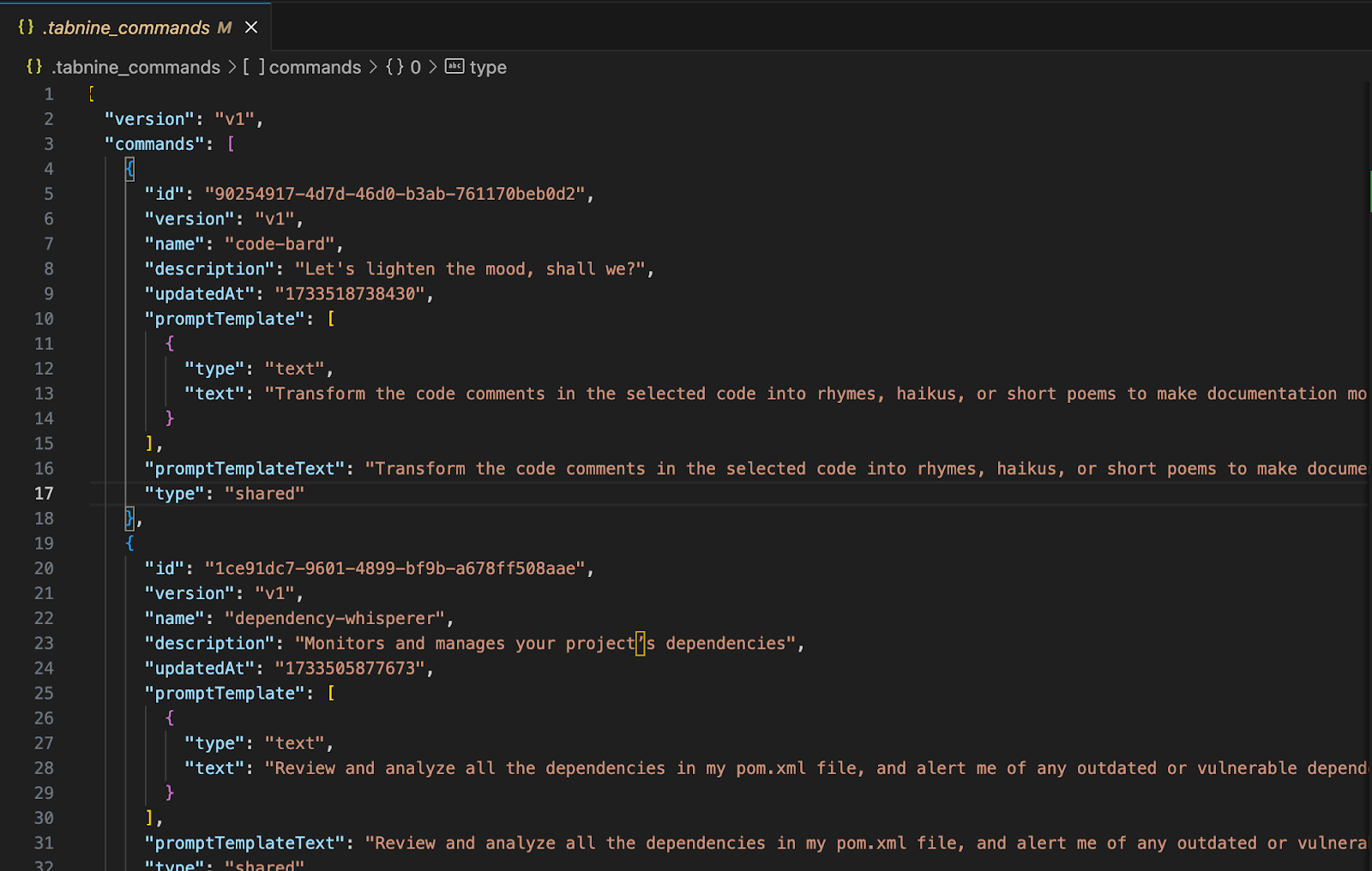
1. You can then choose to share with your team members, which will prompt Tabnine to create a .tabnine\_commands file within each repository.

<figure><img src="/files/Eq8uHcvpoQ6uqyn8frTS" alt=""><figcaption></figcaption></figure>

Users can easily create, edit, and delete commands through this file. The shared file is the single source of truth for commands, making collaboration more seamless and efficient. Each team will be responsible for managing this file. At this time, shared commands do not support mentions.

<figure><img src="/files/Re08P966Viwcmsb5nJCg" alt=""><figcaption></figcaption></figure>

### Option 3: CodeLens (method scope)

{% hint style="info" %}
Available in these IDEs (for these languages):

* **VS Code** (Java, Python, TypeScript & TSX, JavaScript & JSX, Ruby, Go, Rust, Swift, C/C++, C#, PHP)
* **JetBrains** (Java, Python, TypeScript, Rust, Kotlin, PHP, GO, C/CPP, C#)
* **Visual Studio** (all supported languages)
  {% endhint %}

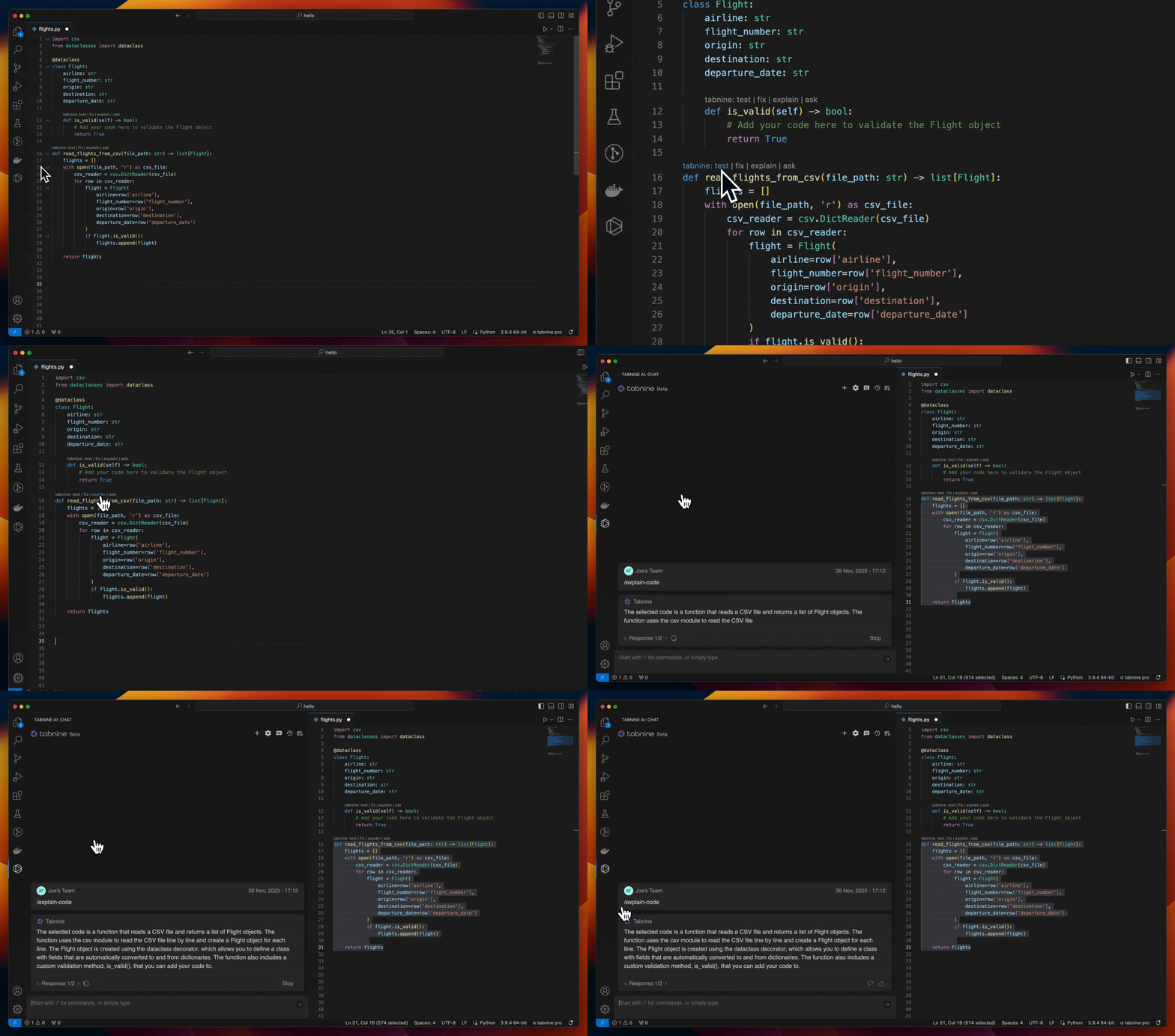
You can trigger the quick actions for the scope of a specific method by clicking the floating Tabnine quick actions:

<figure><img src="/files/neG0roQjKvO6f4NMsCK7" alt=""><figcaption></figcaption></figure>

### Personalizing Tabnine Chat

#### Chat Response Length

You can now customize your Tabnine AI Chat experience even further, allowing for more control over chat response length and style. Users can pick between “Concise” for a shorter answer, and “Comprehensive” for a longer, further explanation to your prompts in Chat.

1. Click on the **Settings** (<img src="/files/7htTerJyBPFIv0kKQGT0" alt="" data-size="line">) icon in Tabnine Chat.
2. On the Chat settings tab, click the **Response Length** section.

From there, you can select either Concise or Comprehensive.
<figure><img src="/files/THU2UW7q5KYR8U4c4BsM" alt=""><figcaption></figcaption></figure>

{% hint style="info" %}
Concise is the default Chat Response Length.
{% endhint %}

#### Custom chat behaviors

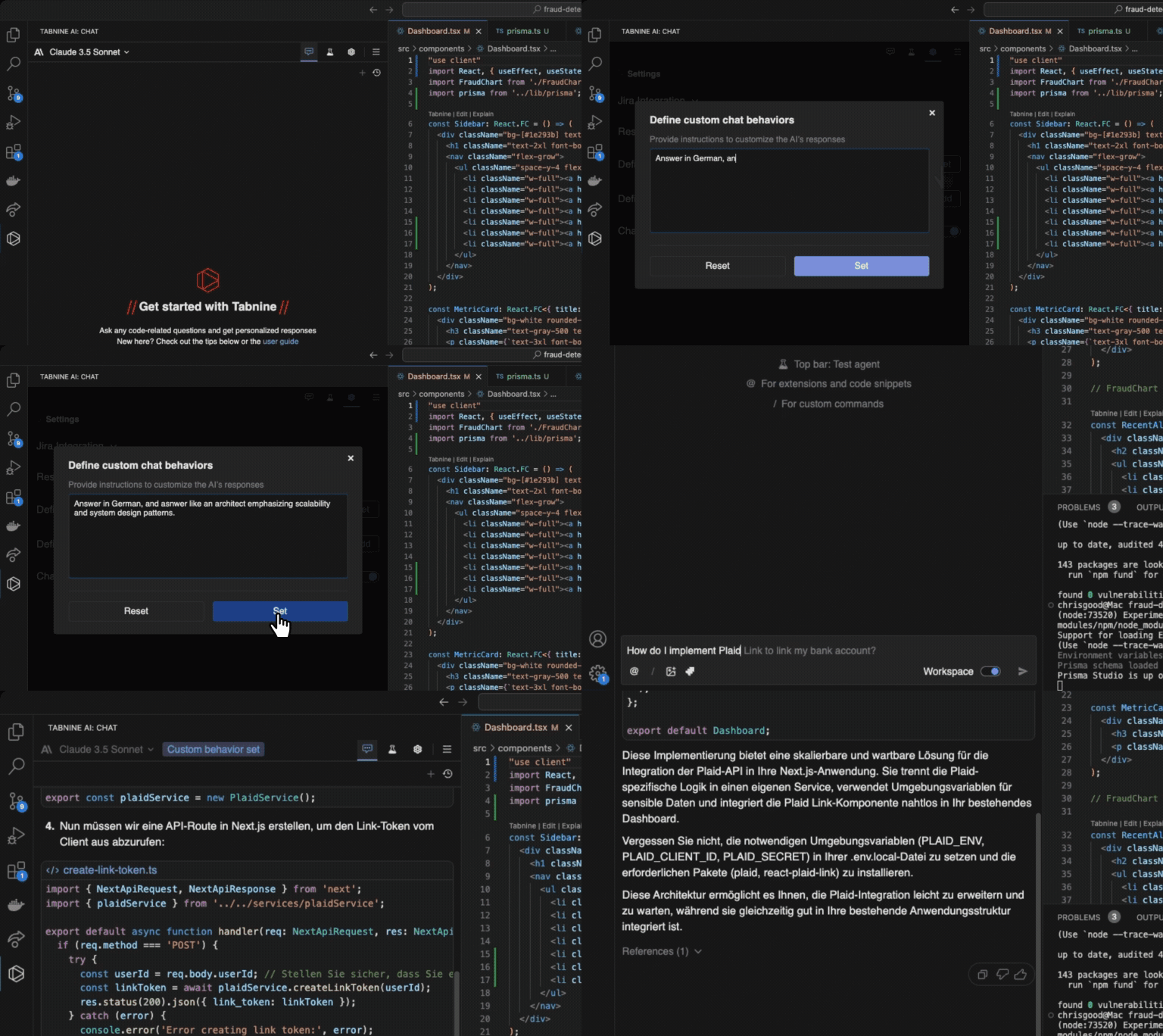
You can specify how Tabnine AI Chat will behave in certain ways (e.g., “Respond like a mentor with step-by-step instructions and examples” or “Respond in German/Spanish”).

Follow these steps to define your custom chat behavior:

1. Click on the **Settings** (<img src="/files/7htTerJyBPFIv0kKQGT0" alt="" data-size="line">) icon in Tabnine Chat.
2. On the Chat settings tab, click **Set** in the **Define custom behavior** section.

From there, you can determine how Tabnine will act before you prompt the AI Chat.
<figure><img src="/files/14HAGILXDqhIttkDugJi" alt=""><figcaption></figcaption></figure>


---

# Agent Instructions: Querying This Documentation

If you need additional information that is not directly available in this page, you can query the documentation dynamically by asking a question.

Perform an HTTP GET request on the current page URL with the `ask` query parameter:

```
GET https://docs.tabnine.com/main/getting-started/tabnine-chat/interact.md?ask=<question>
```

The question should be specific, self-contained, and written in natural language.
The response will contain a direct answer to the question and relevant excerpts and sources from the documentation.

Use this mechanism when the answer is not explicitly present in the current page, you need clarification or additional context, or you want to retrieve related documentation sections.